Sound / 05
Instruments
An instrument turns a Phrase note into sound or MIDI. GlassTracker supports SAMPLE, MACRO, MIDI, and a first-class Audio Unit workflow while keeping projects portable.
Opening an instrument
From a Phrase, put the cursor on an instrument value and use NAV+RIGHT. From Project, open Instrument Pool to browse all defined slots or create a new one.
The Phrase instrument column steps through free slot numbers as well as defined ones, so you can land on an unused slot and open it with NAV+RIGHT. Select its Type field to choose SAMPLE, MACRO, MIDI, or Audio Unit for that exact slot.
On the Instrument screen itself, the fixed header keeps the instrument name above Automation Controls while the parameters scroll. The header is a single focus stop: LEFT/RIGHT, with or without ENTER, select the previous and next instrument rather than moving between the two arrows. The Import/Export pair and the Table/Table Mode pair are also side-by-side rows, so left/right moves between the two controls in each.
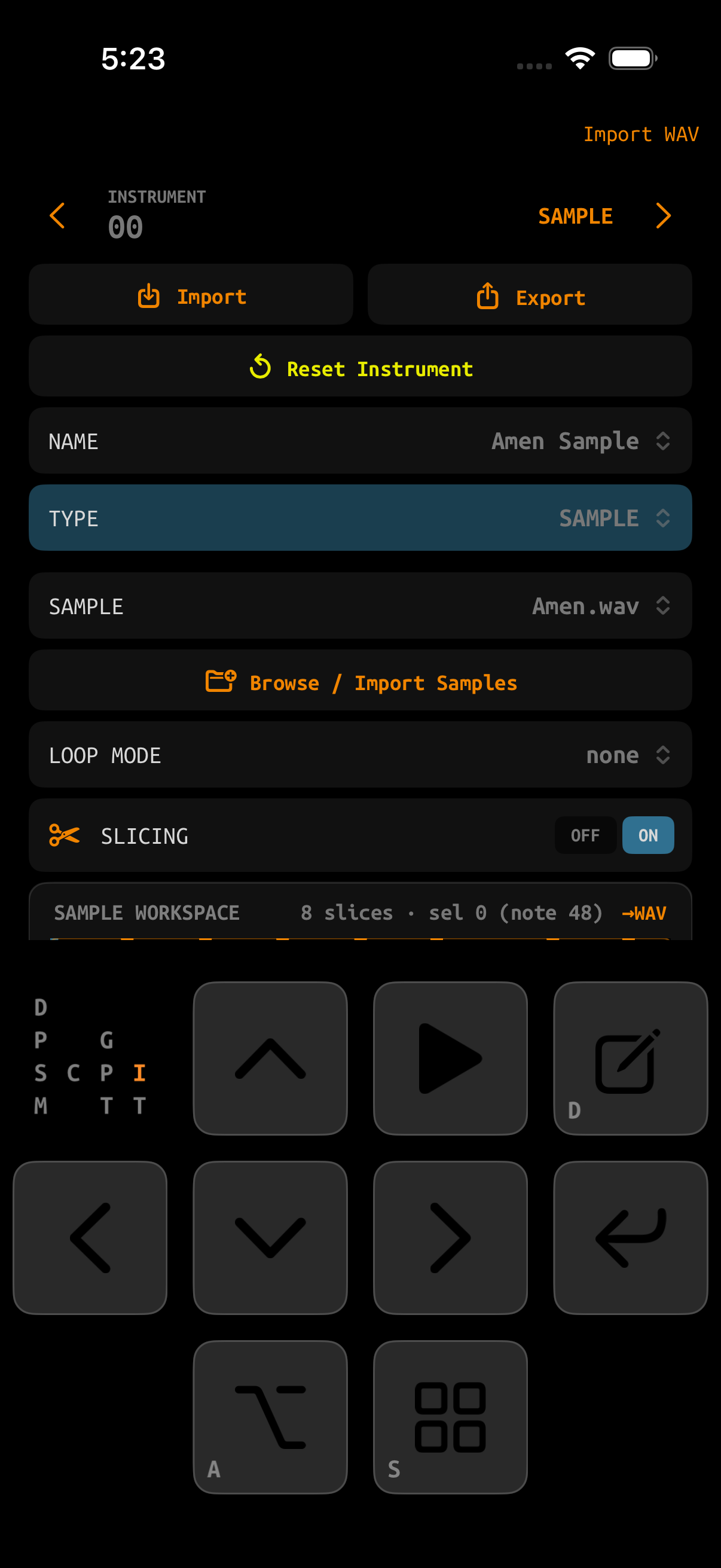
Instrument types
| Type | What it does | Typical destination |
|---|---|---|
| NONE | An unused slot. | Reserve it or change the type before use. |
| SAMPLE | Loads a project-owned WAV into the engine and plays it chromatically or as slices. | Drums, loops, vocals, one-shots, single-cycle waveforms. |
| MIDI | Sends channel voice messages from the tracker to its selected destinations. | External hardware, another CoreMIDI app, AU Rack instruments, or MIDI-aware inserts. |
| MACRO | Runs the built-in Mutable Instruments Braids-based oscillator. | Synth voices generated directly by the tracker engine. |
| AUDIO UNIT | Presents a managed AUv3 synth and its portable MIDI proxy as one instrument. | Hosted iOS instruments with direct plug-in editing. |
Stop playback before changing an instrument type. If the slot contains a changed name or settings, GlassTracker asks for confirmation because the underlying engine object is replaced. Selecting the current type again leaves the instrument untouched and does not show a warning.
Instrument Pool
Project → Instrument Pool lists the project’s defined instruments. The list is alphabetized while preserving each instrument’s numeric slot. Select an item to open the engine-backed Instrument screen. Swipe a row left and tap the red Delete button to return that slot to NONE; this works in both the full pool and the iPad landscape instrument column.
In iPad landscape, select an instrument in INS and use EDIT for compact parameter controls that leave the composing screen in place. While Phrase is open, EDIT follows the effective instrument at the current step, including blank instrument cells that inherit from an earlier row. An explicit INS choice stays selected until you move the Phrase cursor. Opening the full Instrument screen from the rack or sample preview remembers the composing screen it replaced, so NAV+LEFT returns to that Song, Chain, or Phrase. A SAMPLE instrument with an assigned WAV also shows Slices; it opens the full slicing workspace in the right pane without moving the tracker cursor. Done restores the same composing view.
- New Instrument chooses the next available slot, then asks for SAMPLE, MACRO, MIDI, or Audio Unit.
- Instrument numbers in Phrases always refer to the stable project slot, not the list’s visual position.
- Name instruments early; the name appears in Phrase context and becomes the export filename.
SAMPLE instruments
| Parameter | Meaning |
|---|---|
| Sample | The project-owned WAV assigned to the instrument. |
| Volume | Instrument output level before the channel mix. New SAMPLE instruments begin at full volume (FF). |
| Pan | Stereo position; 7F/80 is approximately center. |
| Root Note | The note at which the sample plays at its original pitch. |
| Detune | Fine pitch offset around the root. |
| Crush Input / Bit Depth / Downsample | Lo-fi level, resolution, and sample-rate reduction controls. |
| Filter Cutoff / Resonance / Mix / Type | The sample instrument’s filter. |
| Start / Loop Start / Loop End | Playback and loop boundaries. The inline waveform keeps these spatial and touchable. |
| Slicing | Maps ordered sample regions to consecutive notes beginning at C-4 / MIDI note 48. |
| Table Mode / Table | Clock runs a reusable table continuously; Trigger advances it one row per instrument trigger. |
Assigning a sample
Use ASSIGN SAMPLE to choose from the Project Sample Pool. Use Browse / Import Samples to bring a source-library WAV into the project. Import creates a project-owned copy, so later edits cannot silently change the source library.
Inline waveform workspace
The sample instrument includes the same marker model used by the Sample Editor and Slices screen. Select Start, Loop Start, Loop End, a slice marker, or the parked playhead; audition with PLAY; use ENTER+arrows for sample-accurate movement.
With the workspace selected, NAV+RIGHT opens the expanded view, where touch can also audition regions and add slices. iPhone uses the sideways layout; iPad keeps its current portrait or landscape orientation and expands the workspace within it. See expanded workspace.
MIDI instruments
| Parameter | Meaning |
|---|---|
| Channel | Decimal MIDI channel 1–16. |
| Destination | ALL, MIDI OUT, AU RACK, or INSERTS. This decides which route classes receive the instrument; Channel then filters within them. |
| Volume | Startup MIDI CC 7 value (the tracker byte is scaled to MIDI 0–127). Note velocity starts at 127 and can be changed with VEL. |
| Program | Program Change sent at sequencer start; OFF disables it. |
| Length | Gate length in tracker ticks. 00 holds indefinitely until another note replaces it or transport stops. |
| Table Mode / Table | Clock runs MIDI-capable FX commands continuously; Trigger advances one row per instrument trigger. |
An AU slot's LISTENS ON value matches this instrument channel. Duplicate listen assignments intentionally layer instruments. DELIVERS AS is separate: it changes the channel byte the matched plug-in receives and defaults to channel 1 for broad synth compatibility. See AU channel routing.
Audio Unit instruments
Choose New Instrument → Audio Unit, or open a blank instrument and choose Type → Audio Unit, then select an installed AUv3 synth. GlassTracker reserves a rack slot, loads the plug-in, creates the requested tracker instrument at the same stable ID, sets its destination to AU Rack, binds the two sides, and opens the finished instrument as one transaction. If the rack or instrument bank is full, or the project changes while the plug-in loads, the operation stops without leaving a partial instrument behind.
The Instrument screen identifies the result as AUDIO UNIT and shows the plug-in, rack slot, route, and status. Tap the plug-in name to open its editor; Rack reaches the advanced host controls. The same action row provides Replace and Convert to MIDI, while the trash icon beneath the status badge deletes after confirmation. A route mismatch shows ROUTE ISSUE and offers either the instrument channel or rack channel as the repair authority.
| Action | Result |
|---|---|
| Replace / Locate Plug-in | Choose another installed component for the same rack slot. The instrument ID and Phrase references stay unchanged. |
| Convert to MIDI | Remove only the first-class binding. The portable MIDI instrument and hosted AU both remain for manual routing. |
| Delete a managed AU instrument | After confirmation, remove both the tracker proxy and its primary rack instance. Phrase references are not rewritten. |
| Delete an explicitly linked MIDI instrument | Remove the MIDI instrument but keep the independently configured AU in the rack. |
Automation Controls
Open Automation Controls on a ready Audio Unit instrument and select the parameters you want available while composing. Search by the AU's parameter names; GlassTracker assigns the transport mapping without asking for a controller number. Existing Rack MIDI Map assignments appear selected automatically.
- In Phrase, touch an FX command cell or hold ENTER by itself for about 0.6 seconds, then choose a named item under Instrument Controls. The complete tracker-command list remains below it; an ordinary ENTER tap remains tracker input.
- Tap that MCC value cell again for a named slider, fine buttons, numeric entry, the plug-in's published value range or indexed names, and the raw MCC value as a secondary reference.
- Long-press the FX lane and choose Automation to draw the selected AU control over the Phrase or current multi-row selection.
- The focused-cell strip shows the mapped parameter and its value. Unmapped MCC cells retain the ordinary hexadecimal editor.
Removing or reassigning a control reports known Phrase and Table cells first, including possible same-channel layered uses. Existing MCC data is never rewritten silently. If a plug-in update or replacement removes a parameter, its saved mapping remains marked Unavailable; remove it or explicitly Relink its CC to a live parameter after reviewing the affected cells.
AUDIO UNIT is an iOS presentation over a normal tracker MIDI instrument plus a sidecar-hosted AU. The Phrase still stores the MIDI instrument number, and ptsav.dat remains usable without the iOS sidecar. The advanced rack workflow can still host layers and link existing MIDI instruments manually.
MACRO
MACRO is the built-in Mutable Instruments Braids-based synthesizer. Its saved definition contains Shape, Timbre, Color, Attack, Decay, Signature, Volume, Table, Table Mode, and Name. New MACRO instruments start with Decay 30, giving a newly created voice an audible tail before you shape its envelope. Eight preallocated channel voices are shared by all MACRO definitions, so one definition can play independently on multiple tracks without creating DSP objects during Play.
MACRO implements VOL, ARP, PSL, PFT, KIL/GOF, and table playback. The MAC command changes Shape, Timbre, Color, Attack, Decay, or Signature on the running voice without modifying the saved instrument definition. It can be entered directly in a Phrase or used in a Table.
If a saved project contains an unknown instrument type, GlassTracker rejects it as invalid instead of interpreting it as a SAMPLE instrument.
Importing and exporting instruments
Instrument files let you reuse settings across projects.
- Give the instrument a unique descriptive name.
- Choose Export. GlassTracker writes the instrument under the app’s instrument library.
- In another slot or project, choose Import, select the exported
.ptifile, and press ENTER. ALT+PLAY remains an alternate import shortcut. - The imported definition replaces the current slot after confirmation.
Keep the associated samples backed up too. The instrument definition does not make an external source WAV portable by itself.
Resetting an instrument
Reset Instrument clears the slot’s current type/settings through the engine. It is destructive and may require confirmation. If the sample itself is used elsewhere, resetting the instrument does not directly delete the project-owned WAV.