Sound / 07
Audio Units
Load AUv3 instruments, route sequenced or live MIDI, synchronize plug-in tempo, choose the compatible host path, map parameters, and preserve patches with the project.
How AU routing works
GlassTracker presents a hosted synth as an AUDIO UNIT instrument on iOS, but does not add an iOS-only type to the portable project file. A Phrase still uses a normal tracker MIDI instrument underneath:
The MIDI instrument’s DEST field chooses All, MIDI Out, AU Rack, or Inserts. Use AU Rack when a channel should drive hosted instruments without also playing external gear. All is the compatibility default for older projects.
The iOS sidecar binds that portable instrument ID to one of eight primary rack slots and remembers the loaded component, both channel choices, patch state, bypass, Output Trim, Compatibility mode, timing options, and CC maps. Binding is explicit; unrelated instruments are never classified as Audio Units merely because their channels happen to match.
Create an Audio Unit instrument
- Install an AUv3 instrument app. Launch it once if it requires first-run setup.
- Open Project → Instrument Pool and select New Instrument.
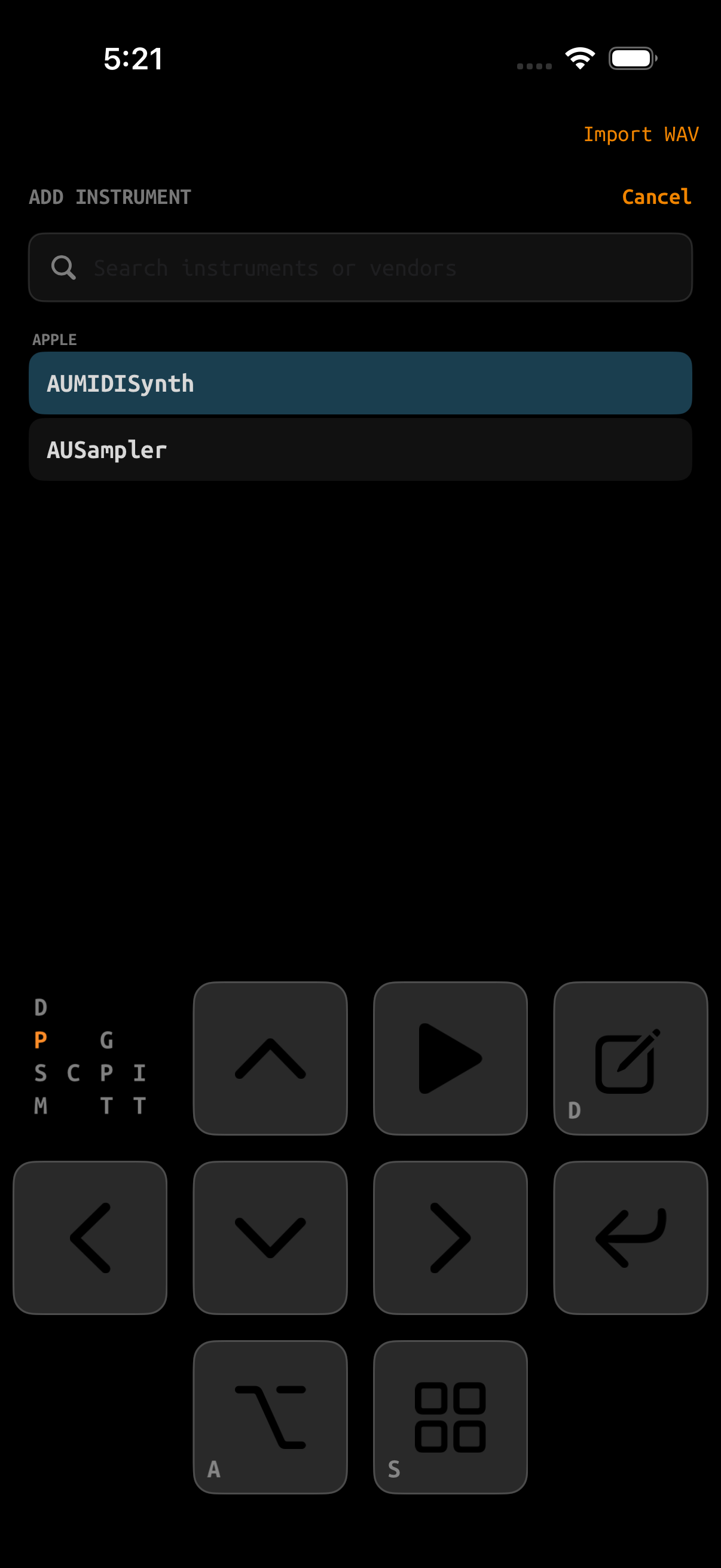
- Choose Audio Unit, then search by vendor or plug-in name.
- Wait while GlassTracker loads the AU, creates its AU-Rack-only MIDI proxy, binds both sides, and opens the new instrument.
- Select the plug-in name on its Instrument screen to open the editor and choose a known audible patch, then enter a Phrase note with the new instrument ID.
The operation is transactional. It refuses a full rack or instrument bank and rolls back a failed load or binding, so a partially created rack/proxy pair is not left behind.
Advanced rack workflow
The original rack-first workflow remains available for layers, preconfigured instances, shared channels, and unusual routes:
- Install an AUv3 instrument app. Launch it once if it requires first-run setup.
- Open Project → AU Rack or Mixer → AU Rack.
- Select add instrument, then search by vendor or plug-in name.
- Wait for the slot to finish loading and select its plug-in name to choose a known audible patch.
- Select Create to create and bind a managed tracker instrument, or reveal Advanced Options and Link Existing to bind an existing MIDI instrument.
- Set the MIDI instrument’s DEST to AU Rack or All.
- Enter a Phrase note using that MIDI instrument and press PLAY.
PLAY starts and stops the song from the rack and its pickers, so routing and patches can be tested without leaving the page.
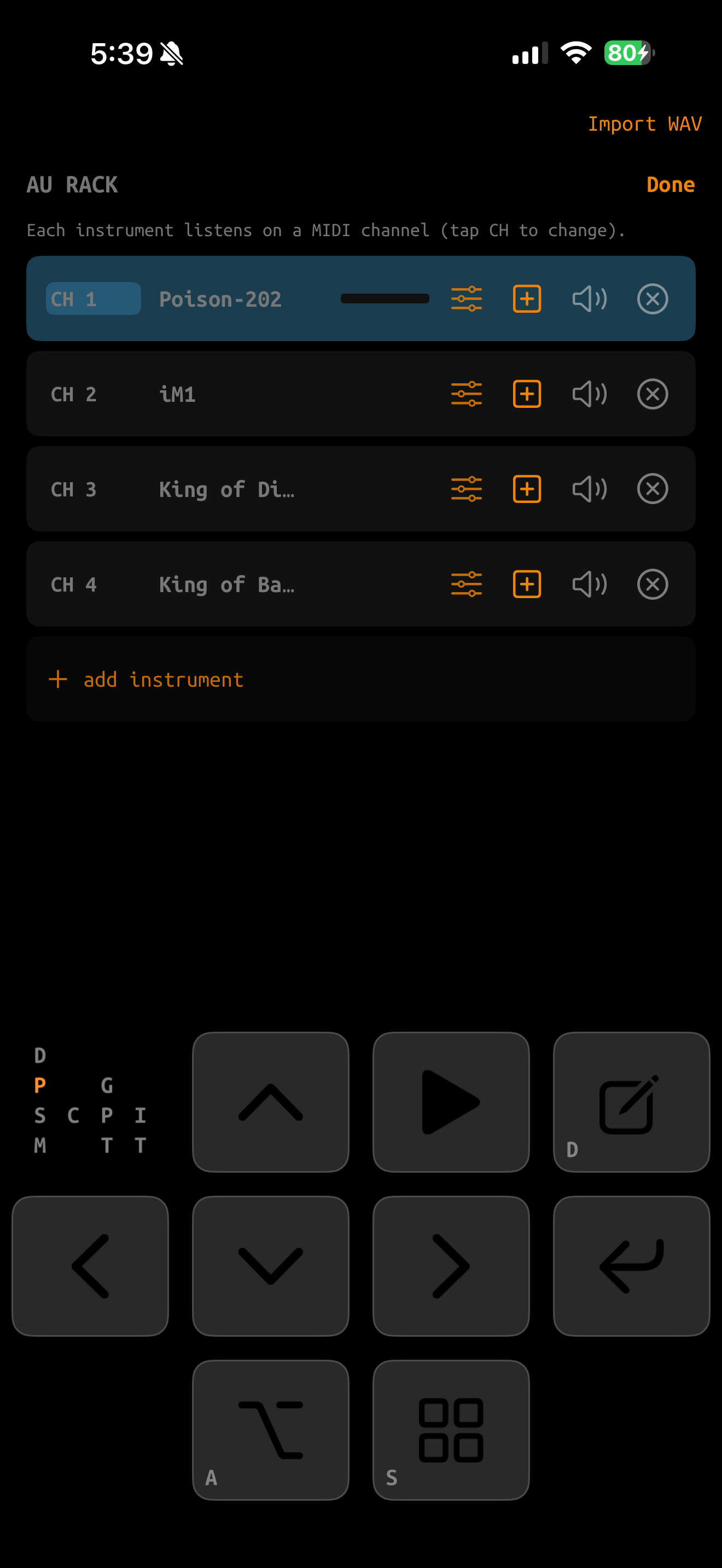
LISTENS ON and DELIVERS AS
Select a slot’s CH badge to edit two different channel decisions:
| Mode | Meaning | Typical setting |
|---|---|---|
| LISTENS ON | Which tracker or incoming MIDI channel selects this rack instance. | Match the MIDI instrument’s Channel. |
| DELIVERS AS | The channel byte that the selected plug-in actually receives. | 1 for most isolated AU instruments. |
| AS ROUTED | Pass the original listening channel through unchanged. | Multitimbral units, channel-10 drums, or 16-part instruments. |
More than one slot may LISTEN ON the same channel. That intentionally layers the instruments. Changing either channel releases held notes and discards old scheduled events before the new route becomes active.
Rack slot controls
| Control | Purpose |
|---|---|
| CH | Edit LISTENS ON and DELIVERS AS routing. |
| Plug-in name | Open the AU’s custom editor. Dismissing it snapshots document state. |
| Map | Map tracker MIDI CC numbers to AU parameters. |
| Create / Instrument ID | Create and bind a new managed tracker instrument, or open the instrument already bound to this slot. |
| Bypass | Stop MIDI delivery and silence held notes without removing saved state. |
| Remove | Detach the unit and remove the active slot assignment. |
| Output Trim | Return trim from mute through −48…+18 dB. 0 dB is calibrated unity. Use ENTER+left/right for 0.5 dB and ENTER+up/down for 3 dB changes. |
| Latency badge | The latency reported by the AU. Automatic PDC uses this value and the rest of the live route. |
| Compatibility | Off retains the Standard AUv3 UI/state instance; On reinstantiates the component with raw Audio Unit ownership. Both are explicitly rendered by GlassTracker. |
| Advanced Options | Shows MIDI Nudge and MIDI Clock. Hiding the controls does not change their saved values. |
| MIDI Nudge | ±50 ms correction for latency the AU does not report. Positive values schedule that slot earlier. PDC ONLY means zero manual adjustment. |
| MIDI Clock | Opt-in Start/Stop and render-synchronized 24-PPQN clock for this slot only. Off by default. |
| Binding action | With Advanced Options shown: Link Existing, Unlink, repair an absent proxy at its saved ID, relink around an occupied ID, or repair a route mismatch. |
Binding, route, and plug-in recovery
- Unlink converts the first-class facade back to an ordinary MIDI instrument without unloading the AU or changing either route.
- If the instrument and rack channels drift apart, Repair Route can make the rack follow the instrument or the instrument follow the rack. Either choice normalizes the destination to AU Rack.
- If a saved proxy is absent and its exact ID is free, Repair recreates it. If that ID contains another live instrument, GlassTracker preserves it and asks you to relink instead.
- If the plug-in is missing, its rack placeholder and binding remain. Use Locate Plug-in to choose a replacement for the same slot, or remove the placeholder without deleting an independently retained MIDI proxy.
- Replacing a plug-in keeps the instrument ID and routing. Managed deletion removes the proxy plus primary rack slot; deletion of an explicitly linked MIDI instrument leaves the rack instance intact.
Opening plug-in editors
On iPhone and iPad portrait, a plug-in editor is presented in landscape inside the screen's safe area, so controls stay clear of the camera cutout and rounded corners. In the full iPad landscape workspace, rack plug-ins open in a draggable floating panel. The panel can stay open while you use the tracker, rack controls, or built-in keyboard; tap it to return focus, expand it for full-screen editing, or choose Done to close it.
- Select a loaded rack slot's plug-in name, or an insert's editor control, to open that Audio Unit directly.
- Hold ALT by itself for about half a second to open a project-local quick picker. It lists only the rack instruments and effects currently loaded in the open project. Selecting one opens its editor; closing it returns to the original tracker or native screen. Open AU Rack dismisses the picker and opens the rack itself.
- For shortcuts that work across projects, open Device → AU UI Shortcuts. Add a generic location such as Rack 1, Channel 2 · FX 1, or Master · FX 1, then learn a QWERTY key or chord and/or a MIDI CC or note.
- A shortcut targets the location rather than a particular plug-in. Rack 1 therefore controls whichever Audio Unit the current project has in Rack 1. The mapping is stored on this device, not in a project.
- Trigger the same mapping again to close its editor; trigger a different mapping to switch editors. A mapped key takes precedence over the normal hardware-keyboard action, and mapped MIDI is consumed rather than also playing a note or changing a parameter.
- MIDI Learn and MIDI editor shortcuts require Receive MIDI under Device → MIDI Input.
Compatibility hosting
Most instruments should remain on Compatibility Off — Standard host. Standard keeps the AUv3 wrapper for the plug-in’s editor, presets, parameters, and saved state while GlassTracker explicitly renders its Audio Unit. If a plug-in is still silent or behaves incorrectly, Compatibility On reinstantiates it with lower-level raw Audio Unit ownership.
| Setting | Host path | When to use it |
|---|---|---|
| Off | Standard AUv3 UI/state instance, explicitly rendered through GlassTracker’s source node | Default; use for conforming AUv3 instruments. |
| On | Separately instantiated raw Audio Unit, explicitly rendered through GlassTracker’s source node | Use when the Standard ownership path is demonstrably incompatible. |
There is no dependable AU capability flag that identifies the required path, so this is an explicit per-slot choice rather than a hardcoded vendor list. The current host has produced working AudioKit Nerd Synth, King of FM, and Super J8 device results; Super J8 is no longer on the unsupported-plugin list. GlassTracker still does not choose a host for an entire vendor.
Switching paths preserves routing, Output Trim, bypass, timing options, CC maps, and the latest serializable document state. Save an important preset first because the AU itself still controls how completely its state survives reinstantiation.
Tempo, transport, and internal sequencers
Every hosted instrument and effect receives Apple musical-context and transport callbacks: current project tempo, quarter-note beat position, 4/4 time signature, and moving/stopped state. Play, Stop, tempo changes, and graph rebases are published against the audible render timeline, not a UI timer.
The live graph asks for 48 kHz and pins the sample rate actually granted at boot—normally 48 kHz on a modern iOS device. The tracker render quantum, hosted AUs, MIDI timestamps, and PDC use that one rate. Project WAV assets can still use the portable 44.1 kHz file format; file rate and live graph rate are different.
A tempo-aware AU should normally follow host context. Enabling a second wire-clock source can double-clock it or cause it to prefer the less appropriate source. Turn MIDI Clock on only when a specific plug-in ignores host context and you have verified that it requires 24 PPQN.
Some internal sequencers need a held trigger
An AU sequencer can be perfectly synchronized yet stop because its input gate closed. For a sustained trigger, set the tracker MIDI instrument’s Length to 00, place one note on the desired start row, and do not replace or stop it until the sequence should end. A bell patch may audibly decay even while MIDI remains held, so use the plug-in’s step display or a sustained test patch when diagnosing.
MIDI Nudge is not a tempo control
Nudge moves a consistently early or late onset on top of automatic PDC. It cannot change an internal sequencer’s note division, correct tempo drift, repair a free-running phase, or prevent a plug-in from resetting its own pattern. Keep it at PDC ONLY while testing tempo and transport lock.
Automation Controls and CC mapping
For a first-class Audio Unit instrument, open Automation Controls on its Instrument screen and select useful parameters by name. In Phrase, touch an FX command cell or hold ENTER by itself for about 0.6 seconds to open the picker; it lists those controls by name. The value cell opens a named slider, and the FX-lane Automation sheet draws the selected control over one or more rows. GlassTracker stores the result as portable MCC aabb data, where aa is the managed controller and bb is the 0–127 value.
The rack's Map screen remains the advanced view for choosing exact controller numbers, manual MIDI instruments, layers, and existing projects:
Parameters are alphabetized and searchable.
Enter a decimal CC such as 22, or explicit hexadecimal such as 0x16. Both forms are shown.
For CC 22 / 0x16, write MCC 16bb.
The map restores with the slot and follows a Standard/Compatibility switch when the AU exposes stable parameter identifiers.
MCC 1600   ; mapped parameter minimum
MCC 1640   ; value 64
MCC 167F   ; mapped parameter maximum
Changing or clearing a first-class instrument's mapping warns about known Phrase and Table uses and possible same-channel layered uses. It does not rewrite existing MCC cells. Mappings whose parameter key path is absent after a plug-in update or replacement remain preserved as Unavailable; Automation Controls can remove them or explicitly Relink the same CC to a live parameter.
Playing an AU from an external keyboard
- On iPadOS 26, after a project restores Audio Units, tap the full-screen External keyboard ready — Tap once to activate prompt. It appears in portrait, landscape, and compact iPad windows when a physical keyboard is connected.
- Open Device → MIDI Ports and enable the keyboard under Sources.
- Open Device → MIDI Input and turn Receive MIDI on.
- Set the keyboard’s incoming channel route to AU Rack or All.
- Set the AU slot to LISTEN ON that channel.
- Leave DELIVERS AS on 1 unless the plug-in requires another channel.
The activation touch returns hardware-keyboard ownership from an out-of-process Audio Unit to GlassTracker and is consumed without changing the covered control. Removing an Audio Unit does not show it again; loading or replacing one can require one new activation touch. Live AU input is delivered immediately rather than quantized. Routed CC, Program Change, pressure, and pitch bend messages reach hosted plug-ins as well as notes.
Patches and project restore
GlassTracker captures AU document state when the editor closes, the project saves, the app backgrounds, or the rack explicitly persists. Large state blobs spill to bounded files instead of bloating the sidecar JSON.
- Save after choosing an important patch, then force-quit and reopen once to verify that AU’s restore behavior.
- Cold units are prepared during project load; AU-heavy projects can show Loading project audio for several seconds.
- A missing plug-in keeps its component identity, binding, routing, and saved patch. Reinstall it and reload, or use Locate Plug-in to select a replacement for the same slot.
- An out-of-process AU crash receives bounded automatic reinstatement attempts with cached state.
- Rack and FX state commit as one staged transaction; an interrupted save leaves the prior generation available.
Tracker commands for AU instruments
ARPcycles relative note offsets;MCHadds chord notes.VELsets note velocity;VOLsends MIDI CC 7 volume.MCCsends CC and drives mapped AU parameters;MPCsends Program Change.PSLandLEGproduce MIDI pitch bend;RTGretriggers by ticks.DLYandMTTmove the entire Phrase row before its MIDI is scheduled.
If an AU is silent
- Confirm the slot is loaded, not bypassed, and Output Trim is audible.
- Confirm the Phrase references a MIDI instrument and its DEST includes AU Rack.
- Match the instrument Channel to LISTENS ON.
- Set DELIVERS AS to 1, disable Program Change, and select a known audible preset.
- Test one held note with Length
00. - Switch Compatibility On for that slot if Standard remains silent.
- Only then remove/re-add it, after saving or noting the preset.
Unsupported plug-ins and performance
Components with known host-level failures can be omitted from the pickers. Device → Unsupported Plugins shows the current list. The list describes GlassTracker’s current host, not whether the component works in another app.
- Establish one stable AU before adding layers and effects.
- Reduce polyphony, unison, oversampling, internal effects, and animated editors if the graph underruns.
- Use the Mixer PDC display and latency badges; add MIDI Nudge only for a repeatable unreported offset.
- Bypass or remove genuinely unused units. Loaded units still have graph and state-management cost.