Sound / 06
Samples & slicing
WAV import, project sample storage, waveform editing, loops, transient detection, and slicing.
Source library vs. Project Sample Pool
| Location | Role | Editing policy |
|---|---|---|
| Source library | Reusable WAVs staged through Files or stored under GlassTracker’s samples folder. | Import creates a project copy. Direct source editing is exceptional and warns before overwrite. |
| Project Sample Pool | WAVs owned by the current project and available to its instruments. | The normal place to preview, edit, rename, slice, process, and remove audio. |
Project Sample Pool
Open Project → Sample Pool. Every row shows a stable pool index, project filename, format/length information when available, and how many instruments reference it.
- Preview auditions while transport is idle; preview stops when you leave the page.
- Edit enters the project-owned Sample Editor.
- Removing an in-use sample is guarded by the engine and confirmation.
- Destructive pool changes are rejected during playback.
Sample Editor
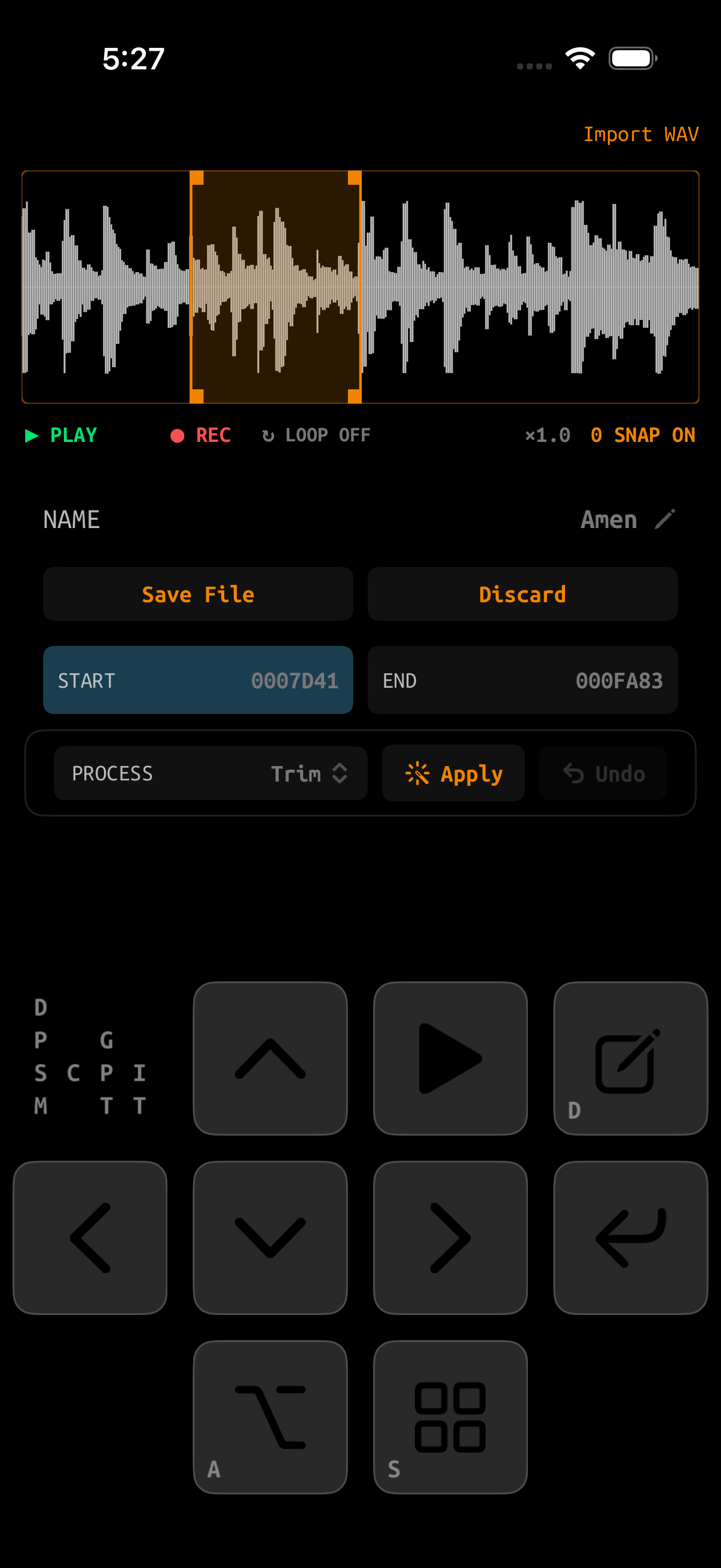
The editor works on a project-owned working copy and keeps a one-level undo snapshot for processing. Saving promotes the completed working copy; a failed promotion leaves the previously committed sample available. The waveform supports touch pan/zoom plus pad-focused marker editing.
| Control | Behavior |
|---|---|
| Start / End | The selected processing and playback region. Drag the larger tabs at either edge of the waveform to adjust it by touch. |
| PLAY | Tap to audition exactly the Start–End region. Hold to play the whole file from its beginning until release. |
| Loop | Audition repeatedly; sample instruments have separate loop start/end markers in their inline workspace. |
| 0 SNAP | Moves markers toward a nearby zero crossing to reduce clicks. |
| Process | Selects an operation such as Normalize, Gain, Fade, Reverse, silence, re-pitch, or timestretch. |
| Apply | Processes the selected range on the working copy. |
| Undo | Restores the state before the most recent applied operation. |
| Save File / Save + Use | Commits the working copy. For a recording, Save File stores it under Samples/Saved_Rec; Save + Use also imports it into the project, creates and names the next SAMPLE instrument, and opens that instrument. |
Precise marker movement
- ENTER+left/right moves exactly one audio frame per click. Hold to accelerate progressively, capped to remain controllable.
- ENTER+up/down moves by 1/64 of the file.
- Fine movement temporarily magnifies around the marker and keeps it centered.
- Pinch to zoom and drag the waveform to inspect detail by touch.
- Drag the Start or End tab directly; its touch target stays fully available even when the marker is at the waveform edge.
- Enable 0 SNAP when cutting sustained material or loops that click at arbitrary crossings.
Processing operations
| Operation | Use |
|---|---|
| Normalize / Gain | Set peak level or apply a chosen level change. |
| Fade In / Fade Out | Create clean amplitude transitions over the selection. |
| Reverse | Reverse only the selected region. |
| Silence | Replace the selected frames with silence. |
| Re-pitch | Change length and pitch together, like tape speed. |
| Timestretch | Change duration while preserving pitch as closely as possible. |
Long native operations show progress and complete off the main interface path. Re-pitch and timestretch are included in Alpha builds.
Slices
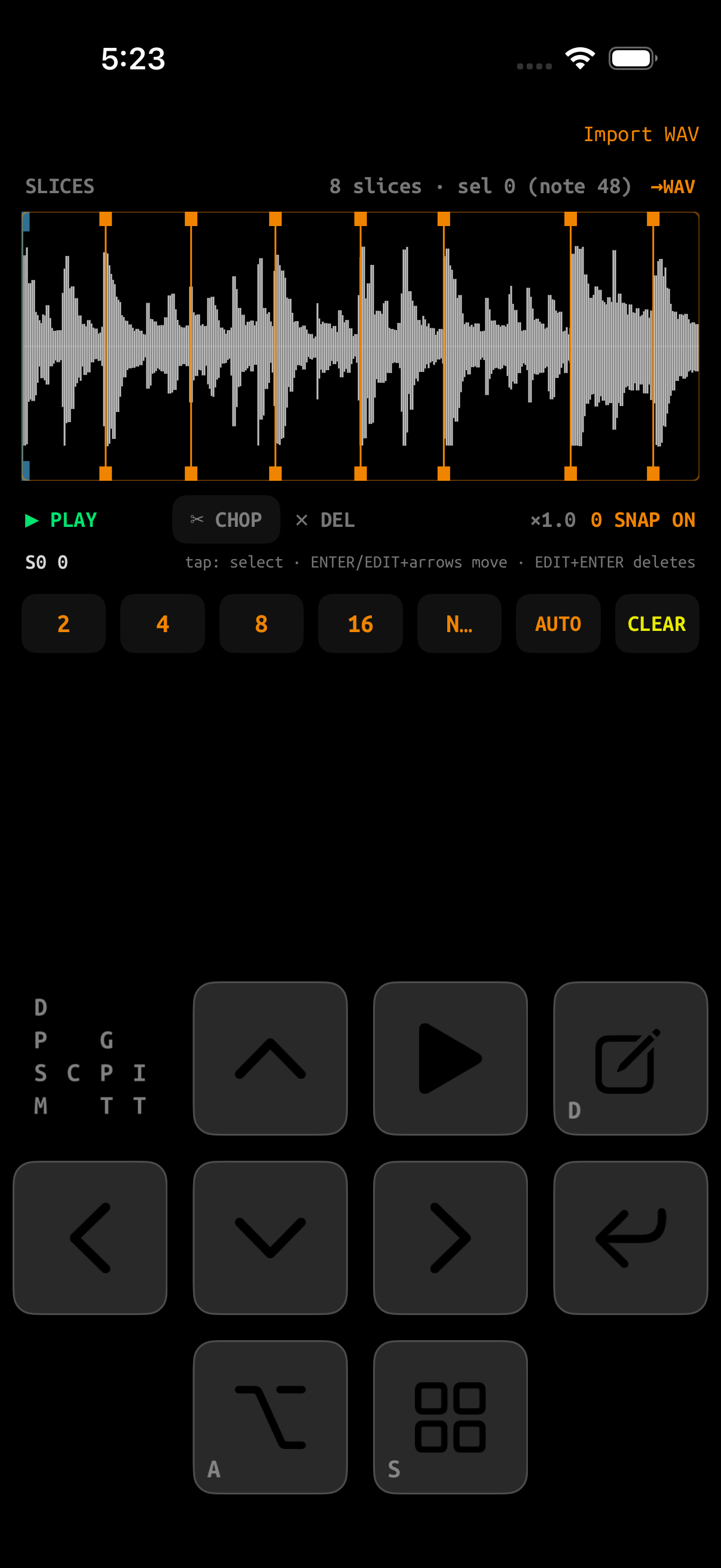
Slicing stores an ordered list of region starts on the instrument. Slice zero is fixed at frame zero. Subsequent slices map to consecutive note numbers beginning at MIDI note 48 (C-4).
Manual slicing
- Assign a sample and enable SLICING on its instrument.
- Press PLAY to audition, then stop at a point you want to keep.
- Tap CHOP or press ENTER on the parked playhead.
- Use left/right to select markers; use ENTER+arrows to adjust.
- Delete a non-zero marker with DEL or EDIT+ENTER.
Markers cannot cross. Moving a slice forward can push following markers; moving backward stops at the previous marker. This guarantees that note-to-region mapping remains ordered.
Expanded workspace
With the instrument’s inline waveform selected, NAV+RIGHT opens it full screen and sideways for more horizontal room. The page draws itself a quarter turn round rather than rotating the app. NAV+LEFT or a plain NAV tap returns; this page stays part of the tracker screen map, so NAV+up/down/right leave it and navigate as usual. Every other combination, including PLAY audition and ENTER chop, behaves as it does inline. Touch adds:
On iPad in landscape, you can instead choose a SAMPLE instrument in INS, open EDIT, and tap Slices. The same slicer fills the right workspace while the left racks remain available; selecting another sample instrument replaces it, and Done returns to the unchanged tracker screen.
- Tap inside a region to select its marker and play that region up to the next one.
- Double-tap to add a slice at the touch point. On a sample with no slices yet, double-tap zooms back out to the whole file instead.
- Touch and hold to play from that exact position and keep playing until you release.
- Drag a marker to move it. Markers still cannot cross.
Start, End, loop, and slice markers use a touch region wider than the drawn line, so they can be grabbed without zooming in first. The markers at the very edges of the file keep their full grab region by shifting it inward, and when several markers coincide the selected one — or the nearest to your finger — wins, so a parked playhead beside a marker stays reachable.
Automatic slicing
- Choose a count from 2 to the instrument’s maximum for equally spaced regions.
- Choose 1 or CLEAR to remove all non-zero slices.
- Open AUTO, adjust transient sensitivity/threshold, preview detected hits, then Apply.
- Use 0 SNAP after detection when a transient boundary still creates a click.
Building a clean loop
Remove silence or a loose attack before the intended playback point.
The intro plays from Start, then repeats between Loop Start and Loop End.
Use held PLAY and sample-accurate marker nudges.
It reduces discontinuities but does not replace listening; phase and timbre still matter.
Format and performance notes
- Imports are converted once; future project loads reuse the project-native copy.
- Higher source rates, bit depths, and better sinc conversion take longer to import.
- Long files use streamed reads and waveform peak pyramids rather than loading every display sample at once.
- Project audio memory is finite. Remove genuinely unused samples from the pool after making a backup.