Make music / 04
Projects & Files
Project settings, save behavior, project-owned audio, import, backup, and restore.
Project screen
From Song, press NAV+UP. GlassTracker’s native Project screen keeps the engine’s real settings and actions, but lays them out for touch.
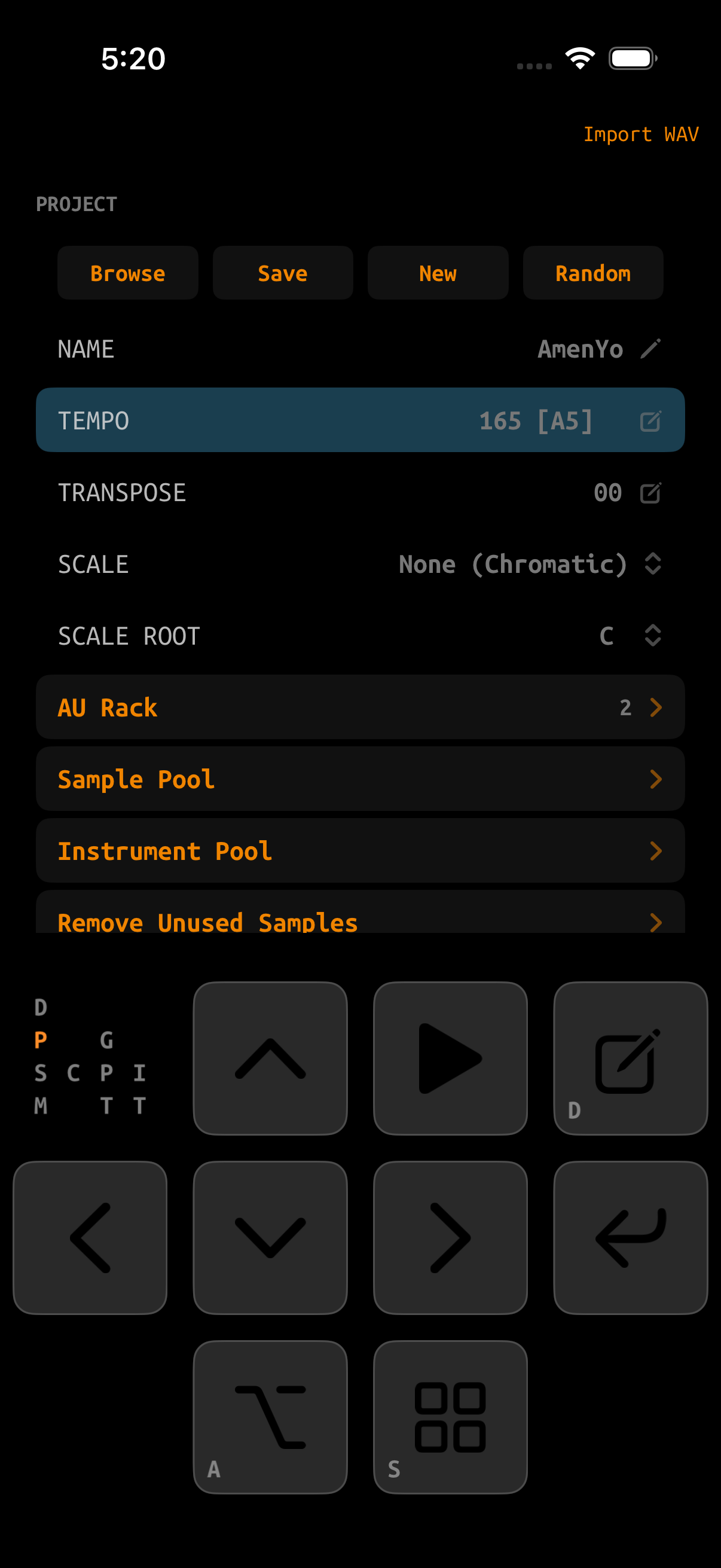
| Area | Purpose |
|---|---|
| Browse / Save / New / Random | Open, explicitly save, create, or generate a project. These four sit in one row: left/right move between them and stop at each end of the row. |
| Name | Sets the project folder/name. Give a project a unique name before treating it as permanent. |
| Tempo / Transpose / Scale | Global timing and pitch context used by the tracker engine. |
| Sample Pool | All project-owned WAVs, with preview, edit, and usage information. |
| Instrument Pool | All defined SAMPLE, MIDI, MACRO, and first-class AUDIO UNIT instruments plus a New Instrument action. |
| AU Rack | Hosted AUv3 instruments assigned to tracker MIDI channels. |
| Recording | Microphone or connected-input capture and take management. |
| Render Mixdown / Stems | Export the song to WAV files in the project’s render area. |
Browse and delete
Choose Browse to open the tracker project list. Use up/down to select a project, left/right to select Load or Delete, and ENTER to run it. EDIT+ENTER is a direct Delete shortcut.
Deletion is intentionally difficult to trigger by accident: when the confirmation appears, press and hold ALT+PLAY+EDIT together for two seconds, keeping all three down until the progress bar completes. On a hardware keyboard, hold A+Space+D. Press ENTER to cancel. GlassTracker will not delete the active project or delete a project while playback is running.
Where a project lives
Open the iOS Files app and go to On My iPhone → GlassTracker. GlassTracker’s Documents directory is visible to Files and Finder file sharing. The app organizes it into project, sample-library, instrument-library, recording, and render content.
GlassTracker/
├── projects/
│   └── my-song/
│       ├── ptsav.dat       tracker project
│       ├── gtsav.json      iOS rack / FX sidecar
│       └── samples/        project-owned WAV files
├── samples/                source sample library
│   └── Saved_Rec/          recordings promoted from the Sample Editor
├── instruments/            exported instruments
├── recordings/
│   └── inbox/              up to five pending takes
└── renders/
    └── my-song/
        ├── my-song-mixdown.wav
        └── stems/
            └── my-song-channel1.wav
The tracker data and iOS sidecar belong together. If you manually copy a project, copy its whole folder—not only ptsav.dat.
Copy it elsewhere first. Files providers can coordinate or replace documents asynchronously, while GlassTracker expects its open project folder to remain internally consistent.
Save, autosave, and backgrounding
- Save is the explicit checkpoint. Use it after meaningful edits and before moving files.
- GlassTracker autosaves recovery state as you work.
- When the app enters the background while stopped, it saves and lets the audio host sleep.
- When background audio is playing, the save waits until playback stops.
- Project writes are transactional: a new generation is flushed before it replaces the last good one.
- If an autosave is malformed or incomplete, load falls back to the explicit save.
- Projects from earlier GlassTracker alpha builds remain compatible. A malformed or incomplete explicit project is rejected without replacing the project already open.
- The last-opened-project pointer is transactional too. If the app closes between parking the old pointer and publishing the new one, the next launch restores the last committed project instead of silently choosing a new untitled project.
- If a fresh or updated install finds the
.untitledscratch project incomplete, it preserves that folder under a name such asRecovered0000before creating a complete empty scratch project. The recovered folder retains the original files for manual recovery; it may still be incomplete. - Device settings are written the same way: the new file is staged and then replaces the previous one in a single step, so an interrupted write cannot leave a half-written settings file.
Creating a safe variation
Project writes and destructive sample-pool changes are intentionally deferred or refused while the transport is active.
Use a short unique name that is safe as a folder name.
The new project receives its own tracker data, samples, AU patch state, inserts, sends, maps, and any extra files stored in the source project folder. Confirming an overwrite replaces the destination project with this complete copy.
For important sessions, verify the copy restores before making destructive changes to the source.
Importing a WAV from Files
The Files button in the top-right app toolbar opens the iOS Files app at GlassTracker’s own folder. Use it to copy whole folders or many WAVs at once into the source sample library; it stages files only, and does not assign anything to an instrument.
- Tap Files, then copy or move your WAVs into On My iPhone → GlassTracker → samples. Subfolders are preserved and browsable.
- Return to GlassTracker and open or create a SAMPLE instrument.
- Choose Browse / Import Samples and find the staged file.
- The importer converts the audio as needed, stores a project-owned copy, assigns it, and persists the change.
Imports are streamed and capped at 256 MiB. Supported sources are uncompressed WAV files: integer PCM (8/16/24/32-bit) or 32/64-bit float, mono or stereo, 8–192 kHz. Project playback uses the engine’s native 44.1 kHz format.
Backing up and restoring
Quick Files backup
- Stop playback and save.
- Open Files → On My iPhone → GlassTracker → projects.
- Long-press the entire project folder and choose Copy or Compress.
- Paste/share it to iCloud Drive, another device, or a computer.
Restore
Place the complete folder back under GlassTracker’s projects directory while the app is not using it, then choose Project → Browse. If the project references an AUv3 that is not installed, the slot appears as missing and its saved state is preserved for a future restore.
picoTracker compatibility
ptsav.dat remains the picoTracker-compatible project. GlassTracker stores iOS-only information in gtsav.json: AU rack slots and patches, channel/master inserts, send configuration, AU return processing, CC maps, and related state. A hardware picoTracker can read the core project but ignores the iOS sidecar and hosted plug-ins.