Interface / 02
Controls & navigation
Control-pad, touch, and hardware-keyboard behavior for tracker and native screens.
VoiceOver controls
Each control-pad button is individually labeled and can be activated with VoiceOver. To enter a chord, use the first button's Hold for a chord action, activate the second button, then return to the held button and choose Release. A held button announces its held state. Each key on the built-in piano keyboard is labeled with its note and octave; activating it plays a short note that releases automatically.
Main control pad
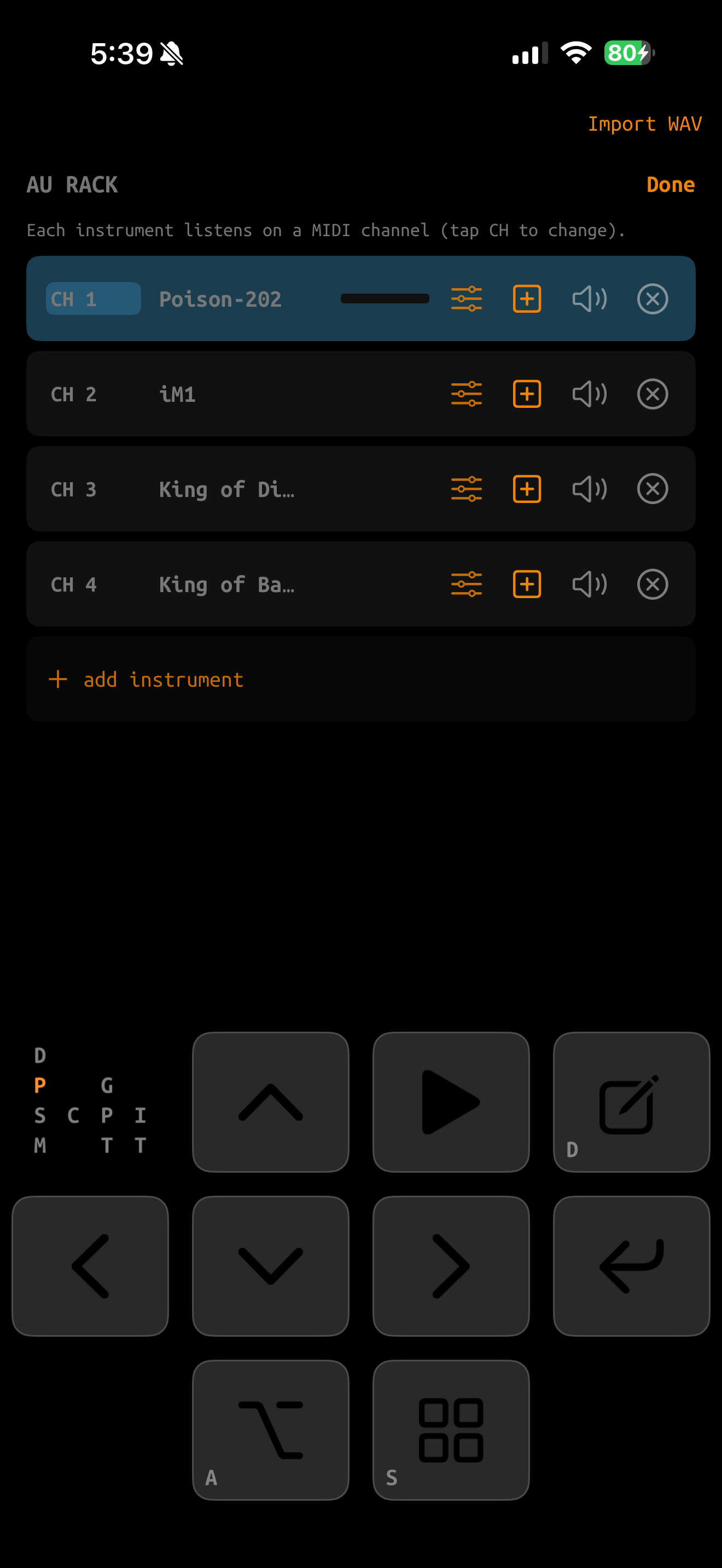
The pad stays visible across tracker and native iOS screens. The small A, S, D, and F marks are reminders of the matching hardware-keyboard shortcuts.
The lettered mini navigation map in the pad's open area is also interactive. Swipe it up, down, left, or right to perform the matching NAV+arrow shortcut.
Tap NAV four times quickly to open the key-layout menu. Choose Remap, drag keys into place, then tap Done over the mini-map. Dropping on another key exchanges their positions; choose Default to restore the original layout. On iPhone and narrow iPad windows, the pad is a 4×3 grid with two open positions. Full-width iPad layouts use left and right 3×2 banks, and keys may move between banks. iPad portrait and landscape layouts are stored separately; landscape reserves the piano-button position for the built-in MIDI keyboard. Custom layouts are device-local and remain active after relaunch.
Device → ENABLE MULTITOUCH adds a linked one-finger zone across every shared boundary between adjacent EDIT, ENTER, ALT, and NAV keys. Touch the link to hold both keys together. The zones follow your remapped layout; arrow and PLAY keys never receive one. Only the small linked area becomes a chord target, so the rest of each button—including its center—still presses that button by itself. This option is off by default. Double-tap the mini navigation map to toggle it quickly; the shortcut updates and saves the same Device setting.
The pad uses the active tracker theme. Button fills, borders, and symbols adjust to the theme colors so the controls remain readable with light and dark themes.
Basic control combinations
| Gesture | Meaning |
|---|---|
| ARROWS | Move the cursor or focus. On native pages, up/down moves rows and left/right moves among controls in a row. |
| ENTER | Insert, activate, open, choose, or confirm the focused item. |
| ENTER + ARROW | Edit a value. Left/right is fine; up/down is coarse. |
| EDIT + LEFT/RIGHT | Step through an alternate or list value, such as an instrument type, mode, preset, or delay division. |
| NAV + ARROW | Move among screens. Left is universal back; right opens more detail. |
| PLAY | Start/stop transport, or audition on sample-oriented screens. |
| Hold ALT | Open a quick list of the Audio Units loaded in the current project. |
Touch supports button chords. Hold ENTER, EDIT, ALT, or NAV with one finger, tap the second key, then release.
Screen navigation
The tracker’s screens form a map. More detailed musical data is generally to the right. A target must exist before you can open it: a Song cell must contain a chain, and a Chain row must contain a phrase.
| Combination | Action |
|---|---|
| NAV + LEFT | Back one screen; close a native page or inline picker. |
| NAV + RIGHT | Drill into detail: Song → Chain → Phrase; Mixer → focused Channel/Master Strip. |
| NAV + UP | Follow the screen map upward, commonly Song → Project. |
| NAV + DOWN | Follow the screen map downward, commonly Song → Mixer. |
| Tap NAV | Back shortcut on GlassTracker-native pages. It remains a no-op on stock tracker screens. |
Editing tracker grids
Insert, change, and clear
- On an empty cell, tap ENTER to insert the last-used value or a new zero value.
- Hold ENTER and tap left/right to change the value by a small amount. On a four-digit FX value this selects a digit instead — see below.
- Hold ENTER and tap up/down to change it by a larger amount.
- Hold EDIT and tap ENTER to clear the current item.
Four-digit FX parameters
A Phrase or Table FX value such as 0000 is one cell, not four. Plain left/right therefore moves between columns: from a Phrase note column, five presses reach the FX2 value.
- Hold ENTER and tap left/right to select one of the four digits inside the value.
- Hold ENTER and tap up/down to change the selected digit.
- The selected digit position is remembered, so it stays where you left it on every other four-digit value.
- A row with no command still edits its value, which is how you enter a number before choosing the command.
Phrase and Table behave identically here. Build 13 walks digits with plain left/right instead; build 14 restores the behavior described above.
On a Phrase FX command cell, touch opens the command picker immediately. With the control pad, hold ENTER by itself for about 0.6 seconds to open it. An ordinary ENTER tap and every ENTER chord remain normal tracker input.
Copy, cut, paste, and clone
| Combination | Action |
|---|---|
| ALT + EDIT | Start a selection. Use arrows to resize it. |
| ALT + EDIT twice | Expand selection to the row. |
| ALT + EDIT three times | Expand selection to the screen. |
| EDIT | Copy the active selection. |
| EDIT + ENTER | Clear the active selection without replacing the clipboard. |
| ALT + ENTER | Cut a selection; without a selection, cut/paste the current cell. |
| NAV + ENTER | Paste the clipboard at the cursor. |
| ALT + (EDIT, then ENTER) | Clone the selected chain, phrase, table, or instrument to the next unused slot. With ALT+EDIT still held, a second ENTER clones again. |
| Song: ALT + (EDIT, then NAV+ENTER) | Deep-clone the selected chain and its unique phrases. Repeated references remain linked to one phrase inside the clone, while the original phrases stay independent. |
Transport, solo, and mute
| Combination | Action |
|---|---|
| PLAY | Start or stop playback. The exact scope depends on Song/Live mode and current screen; on native pages that are not part of the tracker screen map it is always the global song transport. See Song Live commands. |
| ALT + PLAY | Launch or queue every playable channel on the focused Song row; an active selection does not narrow its scope. |
| NAV + PLAY | On Song during running Live, queue the focused channel to stop. On Chain and Phrase it retains contextual play-in-song behavior. |
| EDIT + PLAY | Open Record from its supported source screens; pressing the same chord on Record returns to the screen that opened it. |
| NAV + ENTER | Solo the focused channel. |
| NAV + EDIT | Mute the focused channel. |
| ALT + NAV | Clear all solo and mute states. |
| ALT + LEFT/RIGHT | Nudge song tempo down/up from the Song screen. |
PLAY is a completed tap on ordinary screens, even if the physical key remains down. Sample Editor, Slices, the inline/expanded sample workspace, and the sample-import browser retain press-and-release audition behavior. When using the phone companion, STOP ALL SOUND is the explicit emergency action.
Solo/mute release order matters on tracker grids: releasing NAV first latches the state; releasing the action first makes it momentary.
Native pages and lists
AU Rack, Add AU, Sample Pool, Instrument Pool, Channel/Master strips, parameter editors, and CC maps replace only the display area. The control pad stays visible.
- Use up/down to move through a list and ENTER to choose.
- In a row with several controls side by side, use left/right to move between them. Left/right stays inside the row: it stops at the row’s first and last control rather than spilling into the row above or below.
- PLAY starts and stops the song from these pages and from their pickers, so you can audition the arrangement while working in the AU Rack, the Sample and Instrument Pools, or a channel strip.
- Use ENTER+arrows to adjust sliders and numeric controls.
- In AU Rack, a slot's CH button opens both LISTENS ON and DELIVERS AS. The page-level Advanced Options switch reveals MIDI Nudge and MIDI Clock without changing their saved values.
- Device pages, including MIDI Ports and MIDI Input, retain the bottom navigation and control pad while their settings are open.
- Touch sliders respond to horizontal drags while vertical drags keep scrolling. Instrument volume, pan, and detune settle slightly at their neutral mark and provide one haptic when the center detent is reached.
- Press down while a search field is focused to dismiss the keyboard and return to the currently highlighted list row.
- Tapping outside a search field dismisses the system keyboard.
- Use NAV+left to close the topmost page. A bare NAV tap and NAV+up/down/right are inert on these disconnected pages.
Sample editor and slices
| Combination | Action |
|---|---|
| ENTER + LEFT/RIGHT | Move Start/End or a selected slice by one frame; hold to accelerate. |
| ENTER + UP/DOWN | Move by 1/64 of the file. |
| EDIT + UP/DOWN | Zoom the waveform around the selected marker. |
| LEFT/RIGHT | Walk slice markers and the parked playhead. |
| PLAY | Audition from the selected marker or playhead. Holding can audition until release. |
| ENTER | Drop the parked playhead as a slice marker. |
| EDIT + ENTER | Delete the selected non-zero marker. When the editor owns a pending recording take, confirm Delete Take instead. |
| NAV + RIGHT | Expand the inline Instrument sample workspace. |
Hardware keyboard map
| Key | Control |
|---|---|
| Arrow keys | D-pad |
| Return or F | ENTER |
| Backspace | EDIT+ENTER (clear/delete) |
| A | ALT |
| S | NAV |
| D | EDIT |
| Space | PLAY |
| M | Toggle Musical Typing |
With Musical Typing on, A W S E D F T G Y H U J K play a chromatic octave from C through the next C, and Z/X move the base octave down/up. These keys temporarily replace the A/S/D/F pad aliases. Text fields and plug-in interfaces retain normal typing.