Make music / 03
The tracker workflow
Song, Chain, Phrase, Groove, and Table structure.
Song → Chain → Phrase
| Level | Contains | Use it for |
|---|---|---|
| Song | 8 vertical channels of chain numbers | The large-scale arrangement: intro, verse, drop, alternate sections, silence. |
| Chain | Phrase numbers plus per-step transpose | Reusable sequences such as a four-bar bass part or drum variation. |
| Phrase | Notes, instrument numbers, and two FX command columns | The actual note pattern and step automation. |
Values are hexadecimal. The digits run 0–9, then A–F. For example, row 0F is decimal 15 and the next row is 10.
Logical numbering
Device → Use Logical Numbering keeps newly allocated items in a predictable range for the current Song track. Song chains and Chain phrases use 16-slot banks: track 0 uses 00–0F, track 1 uses 10–1F, through track 7 at 70–7F. Phrase instruments divide the 64 instrument slots into eight-slot banks: track 0 uses 00–07, track 1 uses 08–0F, through track 7 at 38–3F.
Allocation always fills the lowest free gap in that track's range and skips slots already in use. Turning the option on does not renumber existing project data; it affects only later creation. If a track's range is full, GlassTracker reports it instead of spilling into another track. Turn the option off to return immediately to the full free-slot pool.
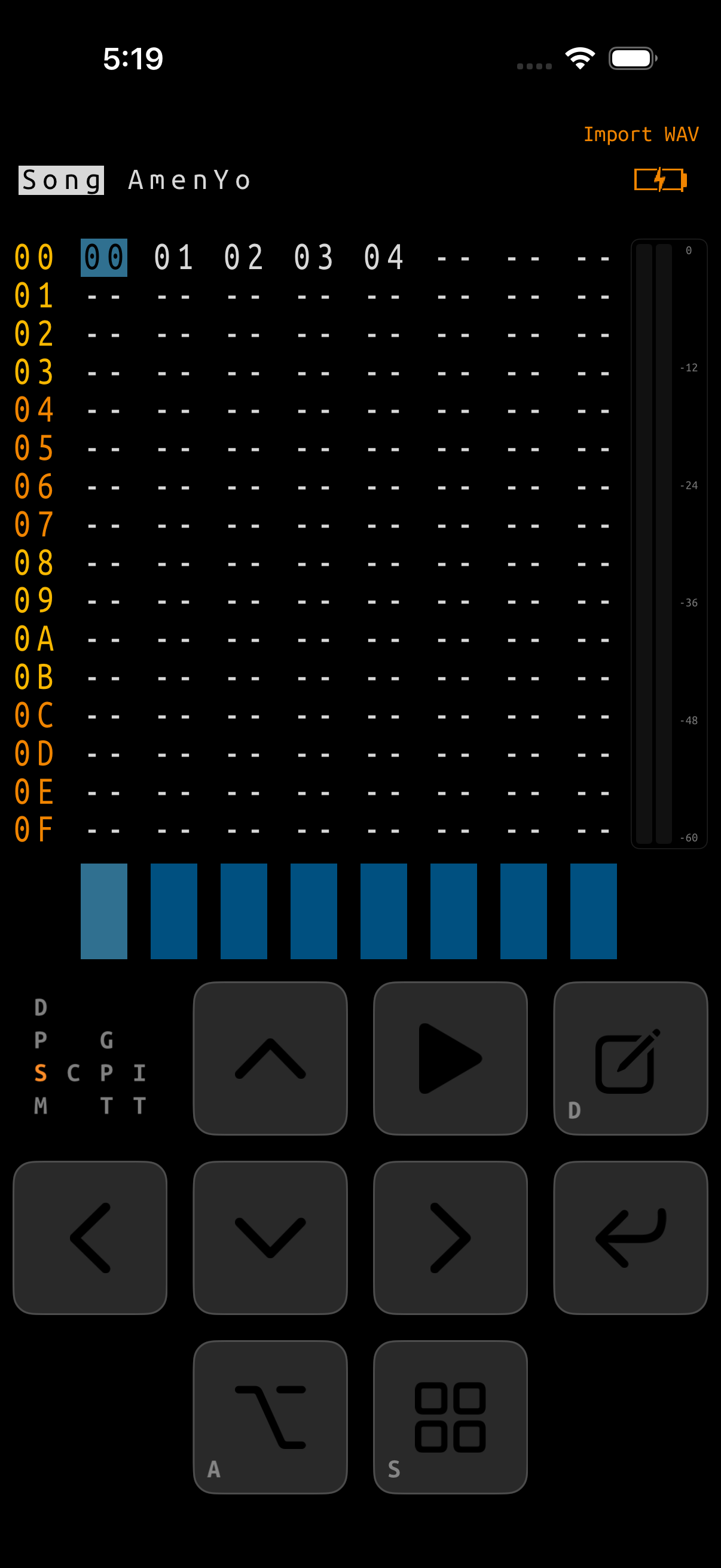
Song screen
The Song screen arranges chains across eight channels. The play marker follows the current row; the bottom visualizers and meters show active notes and level.
- Move with plain arrows.
- Tap ENTER on an empty cell to insert a chain.
- Use ENTER+arrows to change a chain number.
- Use NAV+right on a populated cell to open that chain.
- Use NAV+up/down to jump among populated rows.
- Use EDIT+up/down to page through the arrangement.
Song mode and Live mode
On Song, EDIT+left selects Song mode and EDIT+right selects Live mode. The directions are absolute, so holding a chord cannot toggle repeatedly.
| Mode | PLAY behavior | Use |
|---|---|---|
| SONG | Plays the arrangement from the current location or selected scope. | Writing and listening to a fixed composition. |
| LIVE | Starts immediately while stopped, then queues exact Song rows, Chain steps, and Phrase occurrences at musical boundaries. | Launching patterns, improvising structure, and auditioning variations. |
See Live mode for every Song, Chain, and Phrase command, queue markers, boundary timing, local versus global stops, and a performance walkthrough.
Chains
A chain is a list of phrases. Its right column transposes the phrase on that row. Small positive values transpose upward; high byte values represent negative offsets.
- Tap ENTER on an empty phrase slot to create/insert a phrase.
- Use ALT+(EDIT, ENTER) to clone the current phrase to an unused number. Keeping ALT+EDIT held and tapping ENTER again clones a second time.
- In Song, add NAV to the clone tap—ALT+(EDIT, then NAV+ENTER)—to clone a chain together with independent copies of its phrases.
- Use EDIT+left/right to move to the previous or next chain.
- Use NAV+right on a phrase number to open it.
- A single phrase can appear in many chains; use transpose to reuse a melodic shape at other pitches.
- Chain and phrase numbers that editing leaves unreferenced return to the pool, so inserting and cloning keep working until the project genuinely has no unused slots left.
Phrases
Each Phrase row has a row label and six editable semantic columns: note, instrument, FX1 command, FX1 value, FX2 command, and FX2 value. The instrument name at the top follows the instrument number under the cursor.
| Column | Meaning |
|---|---|
| NOTE | The pitch to trigger. A note can reuse the currently running instrument when the instrument cell is empty. |
| INST | The project instrument number. SAMPLE, MIDI, MACRO, and iOS Audio Unit facades share the same pool; an Audio Unit remains a portable MIDI instrument underneath. |
| FX1 / FX2 | A three-letter command such as VOL, ARP, MCC, MAC, or TPO. |
| PARAM | Four hexadecimal digits interpreted by the selected command. The four digits are one cell: see four-digit FX parameters for selecting and changing an individual digit. |
Touch selection and editing
Tap a Note cell to choose its pitch, an Instrument cell to choose an active instrument or create a new one, or an FX command cell to choose from the complete command list and read its help. A populated Note cell preselects its note name and octave; an empty or note-off row opens with neither selected, and Cancel closes the chooser without writing a note. Other taps move the cursor and dismiss an existing selection; an MCH parameter keeps its dedicated chord picker. If that row has no playable note, GlassTracker asks you to set the note first because MCH needs it as the chord root. Drag across cells to select a rectangle, with a light haptic at each row or semantic-column boundary. Long-press inside the selection to open its actions. Long-press elsewhere moves the cursor to that cell and dismisses the selection.
| Action | Behavior |
|---|---|
| Copy / Cut | Copies the selected rectangle. Copy keeps the selection visible; Cut also clears it. With no dragged selection, either action uses the entire long-pressed row. |
| Paste | Places the clipboard at the cursor and clips data that would extend beyond the Phrase. |
| Clear | Clears the cursor cell or all semantic cells in the selected rectangle, row, or column. |
| Select Row(s) | Expands across all six editable columns while preserving every selected row. With no selection, it selects the cursor row. |
| Select Column(s) | Expands across all 16 rows while preserving every selected semantic column. With no selection, it selects the cursor column. |
| Undo | Reverts the most recent bulk Phrase transaction if no later Phrase edit or project load has invalidated it. |
Each expansion action is omitted independently when the selection already spans its full direction, and its label pluralizes when the existing selection covers multiple rows or columns. The clipboard is independent of the visible selection, so it remains available after tapping elsewhere.
With a selection active, ENTER+left/right applies the normal fine edit to every eligible cell, and ENTER+up/down applies the normal coarse edit. Note changes follow the project scale and sample-slice range; instruments move through defined slots; commands follow command order; values use command-specific ranges. Empty and special cells remain empty.
Phrase step recording
With transport stopped, arm STEP REC in the Phrase toolbar or the built-in keyboard. The next playable Note On from the touch keyboard, Musical Typing, or an external MIDI route containing Tracker writes the note and selected tracker instrument at the cursor, preserves both FX lanes, and advances one row.
- Only the first Note On after all keys are released records, so a played chord auditions without spilling across several rows. Note Off never edits.
- Recording can continue into the next populated Phrase in the current Chain. It disarms at the end instead of overwriting row
0F. - Arming the built-in/QWERTY path temporarily locks Destination to Tracker. Choose or create the tracker instrument from the keyboard controls; disarming restores the prior destination.
- For a sliced SAMPLE instrument, touch and QWERTY keys enter playable
SLxxvalues. Undefined slices are ignored. External MIDI retains ordinary pitch entry. - Leaving Phrase, opening an instrument, starting playback, loading a project, or backgrounding disarms STEP REC. Each recorded row is an ordinary undoable Phrase edit.
Note and slice Fill
Long-press a Note cell or a selection that begins in the Note column, then choose Fill. The modes are Ascending, Descending, Up/down, Repeat selected pitches, Random pitch, and Random triggers. With a sliced SAMPLE instrument they become slice-aware: pitches are shown as slice numbers, Repeat selected pitches becomes Repeat selected slices, and Random pitch becomes Random slices.
- Melodic fills preserve the existing rhythm by default. Enable Every Step to write every selected row.
- Root starts at the first playable selected note, or the last-entered note when the selection has none.
- Generated notes follow the project scale and root. For a sliced SAMPLE instrument, Start Slice and End Slice define a range within the instrument's actual slices; every generated value stays inside it.
- Repeat selected pitches cycles the playable selected notes in row order.
- Up/down rises to the middle of the selected row range, then falls symmetrically.
- Random pitch preserves rests and note-offs. Random triggers uses the selected root and density without changing instrument cells.
- For either random mode, Locked limits randomization to rows that already contain a playable note; empty and note-off rows remain untouched. Random pitch keeps that row mask exactly, while Random triggers applies Density only within it.
- Tap the displayed Mode to choose from a checked list. Tap Start Note or End Note to use the same note-name and octave picker as Instrument Root Note. The larger arrows remain available for one-step changes.
- The displayed seed makes both random modes repeatable. Drag its slider for coarse movement, use the left/right arrows for one-step changes, or tap the number to enter a value from 1 to 65,535.
- The preview does not modify the Phrase; Apply commits one edit. The next Fill starts with the most recently applied mode, options, density, seed, and separate remembered melodic-note or slice range. Cancelling does not replace those settings.
FX Automation
Long-press a selection confined to one FX lane and choose Automation. A multi-row selection defines the affected rows. Starting from a single FX cell uses all 16 Phrase rows.
- Choose an automatable command, then choose the target component directly below it. Tap a displayed command, component, or named companion value for a checked list; use the arrows for one-step changes. Structural commands are not listed.
- Draw freehand or use Ramp Up, Ramp Down, Triangle, or Sine. Minimum and Maximum limit the output range.
- The vertical labels show hexadecimal command values; the horizontal labels show Phrase steps
0–F. - If every selected row already uses the same command, the editor selects it and approximates the existing values in the curve. Mixed or empty rows require a command choice.
- Commands with multiple components show controls for the components not being drawn. For example,
MACshows Target below Command while its Value is drawn. - Apply writes ordinary command/value cells in one transaction. Closing without applying leaves the Phrase unchanged.
Grooves and ticks
A groove is a repeating list of tick lengths. A tick is the tracker’s internal timing unit; phrase rows last for the number of ticks supplied by the active groove. Equal values produce straight timing. Alternating long and short values produces swing.
STRAIGHT   06 06 06 06
SWING      08 04 08 04
PUSH/PULL  05 07 05 07
Use the Groove screen to edit patterns, then select a groove in Project settings or change it during playback with the GRV command. Small changes are often more musical than extreme ones.
Row delay and microtiming
Use a Phrase timing command when one row should move without changing the groove for every track. Both commands shift the entire row: its note, instrument change, and both FX lanes remain together.
| Command | Range | Result |
|---|---|---|
DLY 00xx | 00–05 | Move the row later by an exact number of whole tracker ticks. |
MTT 00xx | 01–07 | Move the row late by 1–7 eighth-tick steps. |
MTT 00xx | F9–FF | Move the row early by 7–1 eighth-tick steps. |
Negative MTT on phrase row 00 is clamped to the phrase boundary; it does not reach back into the previous phrase. Use DLY for intentionally coarse late hits and MTT for small push/pull placement. These are Phrase commands, not Table play-head delays.
Tables
Tables are reusable command sequencers. They can automate an instrument every tick, create arpeggios and envelopes, or run one row per trigger when instrument automation is enabled.
- Each table contains command rows, similar to a Phrase without note/instrument columns.
- Assign a table on an instrument or trigger one from a Phrase with
TBL. HOPcreates loops and holds;STPends a one-shot table.- Tables are shared. Clone before making a variation if other instruments already depend on one.
- Touch editing matches the other tracker grids: drag to select, or long-press one row for Copy, Cut, Paste, Clear, row, and column actions.
00 VOL 0400   ; fade down
01 HOP 0110   ; hold while the fade runs
02 VOL 0560   ; rise toward 0x60
03 STP ----   ; finish the one-shot envelope
Basic writing sequence
Start with a drum, bass, or melodic pattern.
Repeat it, then clone only the phrase that needs a fill or variation.
Use empty cells as deliberate rests and transpose values for harmonic reuse.
Use reusable Tables for parameter motion, Grooves for repeating swing, and DLY/MTT for individual row placement.
Add channel strips, sends, and hosted effects.