Mix & connect / 08
Mixer & effects
Balance the eight tracker channels, process them through Audio Unit inserts and native sidechain compression, share reverb and delay, and manage hosted instrument returns.
Mixer overview
From Song, press NAV+DOWN. The native Mixer follows the engine’s channel focus and values while adding touch faders, strip access, AU returns, and plug-in delay compensation status. NAV+RIGHT opens the focused strip; while continuing to hold NAV, LEFT returns immediately without requiring a modifier re-press.
On iPad in landscape, the persistent MIX column provides channel and master volume, mute, and meters beside the tracker. Tap a row’s arrow to open its complete Channel or Master Strip in the right workspace. You can select another strip from the column without returning first; Done restores the unchanged tracker view.
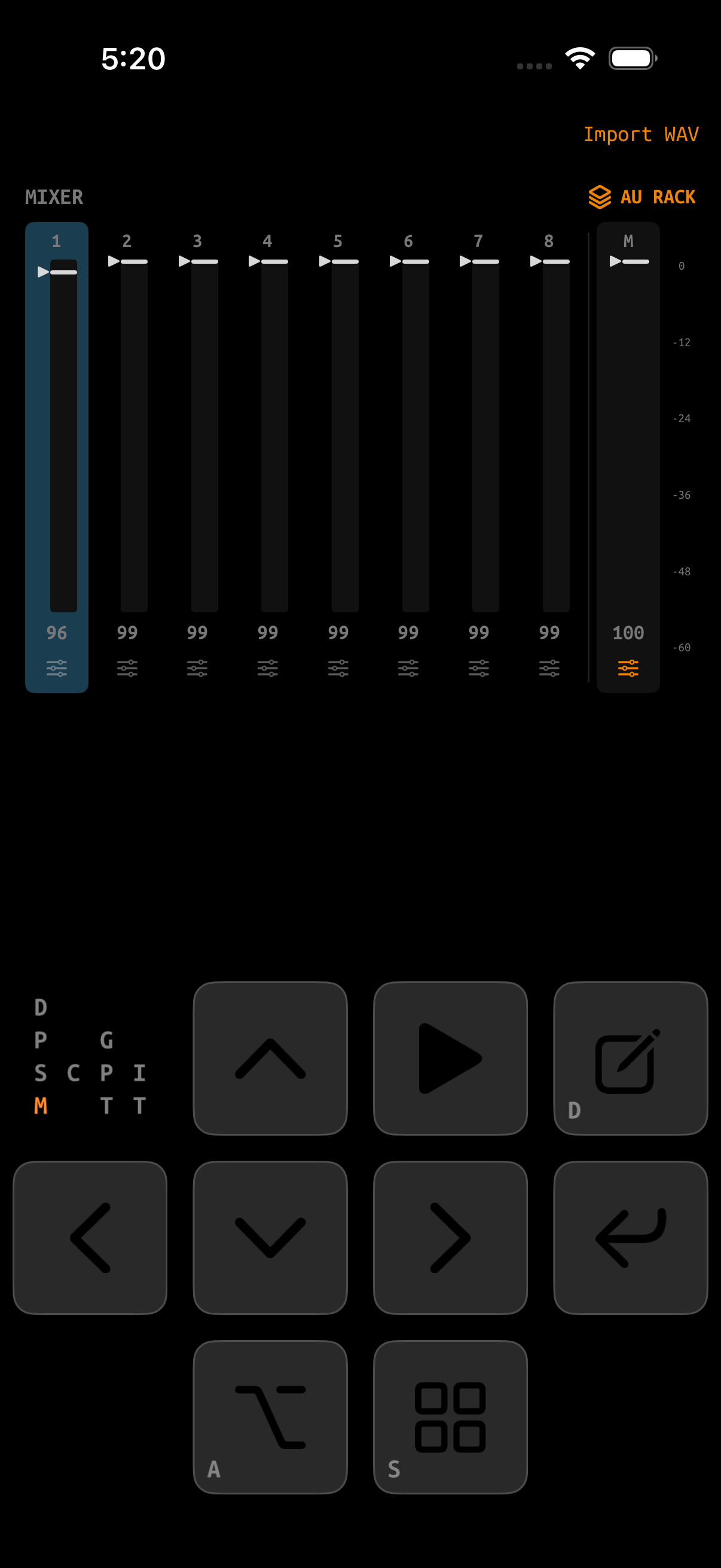
| Area | Purpose |
|---|---|
| Channels 1–8 | Engine channel level and stereo meter. Focus follows the tracker mixer cursor. |
| Master | Overall level, master strip access, and final output metering. |
| FX / strip button | Opens the focused channel or master signal chain. |
| PDC | Shows active plug-in delay compensation in milliseconds. |
| AU Returns | Output trim/meter for each loaded instrument plus its return strip. The fader uses the same −48…+18 dB scale shown in AU Rack. |
| AU Rack | Opens the hosted instrument rack without returning to Project. |
Mixer controls
- Left/right moves through the AU Rack button, channels 1–8, Master, and loaded AU returns. Press left from channel 1 to select the AU Rack button at the top right of the display.
- Up/down nudges focused volume; ENTER+arrows uses the engine’s standard value editing.
- A chordless ENTER tap or NAV+right opens the focused AU Rack, channel, Master, or AU Return control.
- NAV+ENTER solos; NAV+EDIT mutes; ALT+NAV clears all.
- Touch-drag a fader for direct absolute control.
Signal flow
TRACKER CHANNEL
  → channel fader
  → insert 1 → insert 2 → SC compressor
  → dry mix
  ├→ REV send ─┐
  └→ DEL send ─┤
               ├→ master inserts → limiter → output
AU INSTRUMENT   │
  → return inserts
  → return fader → SC compressor
  ├→ REV send ─┤
  └→ DEL send ─┘
Channel and AU-return sends are post-fader. Lowering the source also lowers what feeds the shared effect buses.
Channel Strip
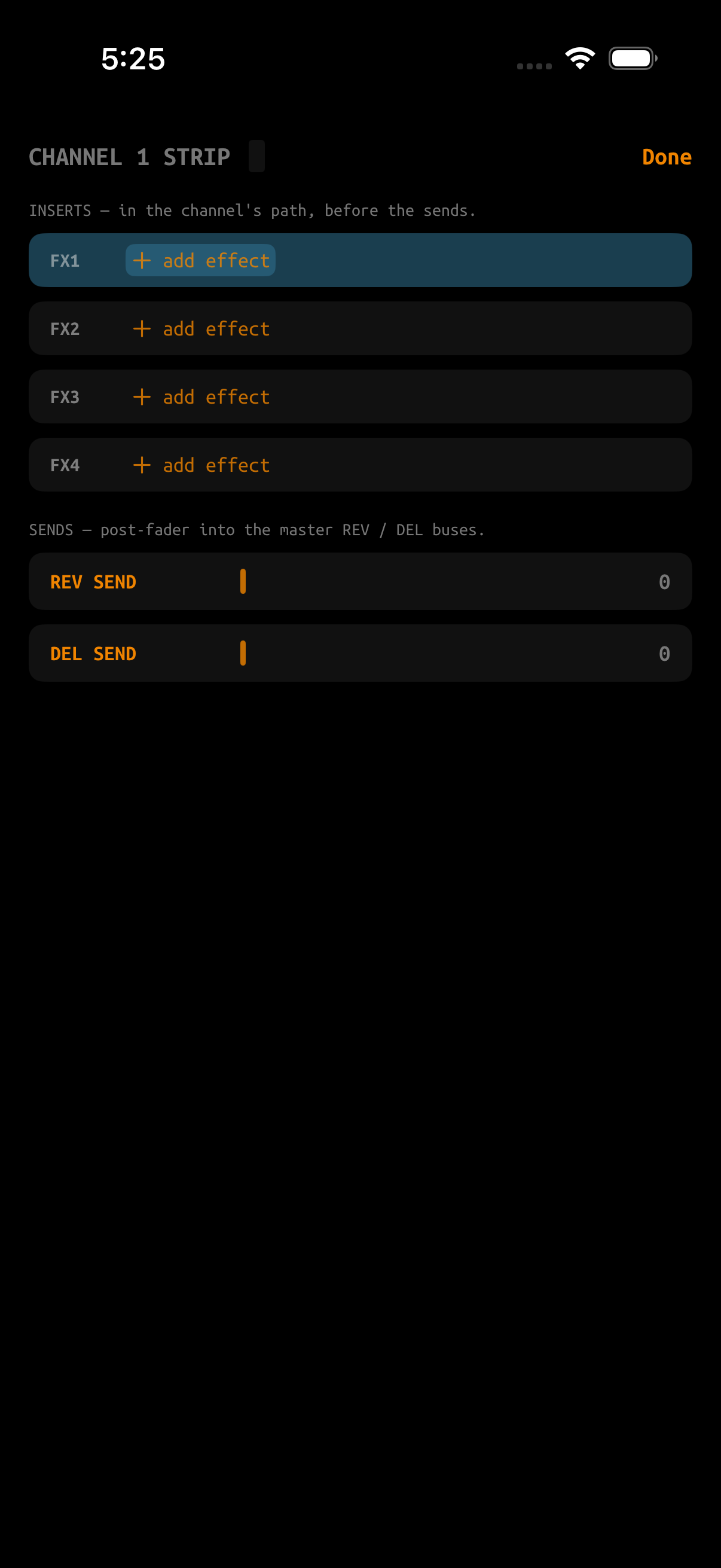
Every engine channel has four Audio Unit insert slots, a native SC sidechain-compressor row, then REV and DEL send levels. Insert rows expose:
- Plug-in editor (custom UI when available, generic parameter list for built-in Apple units).
- MIDI channel and raw MIDI forwarding where the effect supports it.
- CC-to-parameter mapping.
- True bypass, removal, missing/crashed state, and reported latency.
Adding, replacing, or removing an insert rewires only the affected channel segment and does not interrupt playback: the song keeps running and other channels are untouched. Notes still sounding through the rewired path are re-attacked as it completes, so a note held across the change can be audibly retriggered. Stop transport when you need a clean listen.
Sidechain compressor
Every tracker Channel and AU Return strip has one fixed native sidechain compressor after its inserts and fader/trim and before its dry and REV/DEL send fan-out. Select SC to open it. Turning it on without a source opens the source picker; choose any other tracker channel or AU return. The strip row shows the source, tap mode, threshold, ratio, and a live gain-reduction meter.
KEY TAP controls where the detector listens:
- FOLLOW MIX follows what that source contributes after its level, mute/solo state, PDC, and inserts. Turning down or muting the source also stops its key.
- GHOST uses an isolated pre-fader, pre-insert copy. It can keep ducking when the source is turned down, muted, or excluded by solo, but the ghost signal itself is never mixed into the master, sends, renders, or resampling paths.
For an AU-return source, return trim affects FOLLOW MIX but not GHOST; bypassing the hosted instrument silences both. A source insert shapes FOLLOW MIX but not GHOST. Empty or missing AU slots stay selected and provide silence until the same stable rack slot becomes available again.
| Control | Default | Purpose |
|---|---|---|
| ON | Off | Enables this target after a valid source is assigned. |
| SOURCE | Unassigned | Chooses another Channel 1–8 or AU Return 1–8. |
| KEY TAP | FOLLOW MIX | Selects the audible-mix or isolated ghost detector seam. |
| THRESHOLD | −18 dB | Level above which the target is reduced. |
| RATIO | 4:1 | Compression strength; 1:1 is unity. |
| KNEE | 6 dB | Softens the transition into compression. |
| ATTACK | 5 ms | How quickly gain reduction begins. |
| RELEASE | 150 ms | How quickly the target returns to unity. |
| KEY GAIN | 0 dB | Raises or lowers detector sensitivity. |
| KEY HPF | Off | Removes low frequencies from detection only. |
| MAKEUP | 0 dB | Adds output gain after compression. |
| MIX | 100% | Blends compressed and dry target audio. |
Assignments and edited controls are saved per project, including an edited setup left off. Reciprocal routes and one source feeding several targets are supported; a target cannot select itself.
Adding an effect
- Open a Channel, Master, or AU Return strip.
- Select an empty insert row.
- Choose from BUILT-IN Apple Audio Units, GlassTracker Bundled Airwindows effects, or INSTALLED third-party effects.
- Use search, or browse installed effects ordered by vendor and name.
- Open the editor or parameter list, adjust, then save the project. In GlassTracker's parameter editor, chordless PLAY continues to start and stop the song so you can audition changes; modifier combinations remain blocked while the editor owns the controls.
Built-in choices are curated Apple Audio Units—reverb, delay, EQ, dynamics, limiter, distortion, and filters. GlassTracker Bundled choices use selected Airwindows processors hosted through the same insert system. See the AirWindows Reference for controls, uses, and cautions.
REV and DEL sends
The two shared buses live on the Master Strip:
- REV defaults to an Apple reverb with selectable preset and return level.
- DEL defaults to a tempo-aware delay with musical division, feedback, and return level.
- Either built-in processor can be overridden by an AU effect.
- An inaudible bus auto-bypasses its processor to avoid unnecessary DSP.
Master Strip
The Master Strip provides four inserts, REV/DEL processors and returns, and the final limiter. The limiter is enabled by default and sits last in the graph for clip safety. Disable it only when you understand the headroom consequence.
AU Return strips
Each loaded AU instrument has its own return strip with four inserts, one SC compressor, and REV/DEL sends. This lets you process or duck a synth before it reaches the shared buses—for example, chorus → EQ → sidechain → delay send—without affecting the tracker MIDI instrument definition.
Latency and PDC
Audio Unit effects may buffer audio. GlassTracker reads reported latency and compensates channel insert paths in samples. Rack MIDI is scheduled against the live audio render timeline, and real-time mixdowns trim master latency.
The AU Rack's optional MIDI Nudge is a per-instrument manual correction on top of PDC. At 0 ms, automatic PDC still operates; positive values schedule rack MIDI earlier. Nudge does not repair tempo or transport phase—use the host-timing and MIDI Clock guidance in Audio Units for an internal sequencer.
PDC can only compensate truthful information. If one effect remains audibly early or late, bypass it to confirm the cause and include the AU name/version in a report.
What renders hear
- Engine-only songs can use fast offline mixdown.
- If the AU Rack, any insert, any send, or an active sidechain is audible, Mixdown switches to real-time so it captures the iOS audio graph.
- Realtime mixdown includes target gain reduction and GHOST detector behavior, but never mixes the isolated ghost key itself.
- The bounce tap is after master inserts and before/through the intended final chain, so master processing is included.
- Stems remain dry engine channel renders; iOS-side inserts and sends are not printed into individual stems.
Practical gain staging
- Balance engine channels before adding master processing.
- Keep meters out of sustained red; do not rely on the limiter to repair a clipped mix.
- Add sends gradually. Reverb/delay returns combine energy from every feeding channel.
- Match bypassed and processed loudness when judging an insert.
- Leave headroom for AU instruments, whose patches can have much higher sustained RMS than percussive samples.