Finish / 10
Record & render
Capture a microphone or connected input into managed takes, resample GlassTracker’s own output, then export a finished stereo mix or dry channel stems to Files.
Recording audio
Open Project → Recording, or press EDIT+PLAY where the record shortcut is available. Pressing EDIT+PLAY again on the Record screen returns to the screen that opened it, as does NAV+LEFT. The native Record screen shows the selected iOS input route and channels, gain controls, timer, input level, and take list.
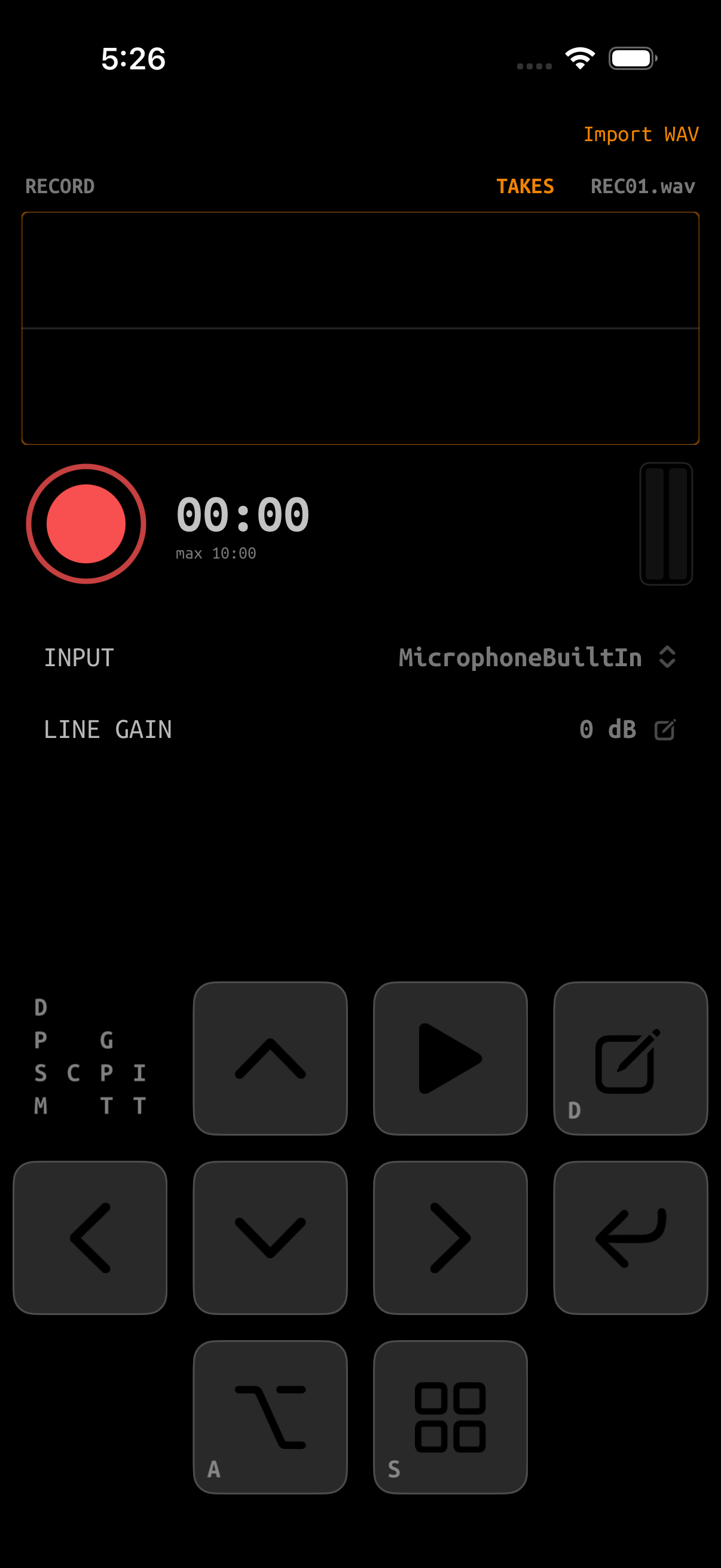
Microphone permission
iOS asks the first time GlassTracker records from the microphone. Allow access in the prompt. If previously denied, enable GlassTracker under Settings → Privacy & Security → Microphone.
Choose an input
The INPUT row lists routes available to the current AVAudioSession: built-in microphones and compatible connected interfaces. Choosing a built-in mic sets the engine source to Mic; external routes use its line-input behavior.
Bluetooth headset mic is off by default so opening Record while using AirPods or another dual-profile headset keeps playback on the stereo A2DP route. To record through the headset microphone, open INPUT, turn Bluetooth headset mic on, then select the headset input. The hands-free profile is mono and lower fidelity, and enabling it can change Bluetooth output quality; turn it off again when the headset microphone is no longer needed.
After choosing the device, use CHANNELS to select what GlassTracker records. Every hardware input is available as mono (Input 1, Input 2, and so on), and every adjacent pair is available as stereo (Input 1+2, Input 2+3, and so on). The meter follows the same choice. GlassTracker remembers a separate channel choice for each device; if an interface reconnects with fewer channels, it safely falls back to Input 1+2 when available or Input 1 otherwise. The built-in microphone remains mono.
Capture uses the input route’s hardware sample rate. When a take is finalized, GlassTracker converts it to the engine’s 44.1 kHz WAV format before the take is imported or assigned. This includes interfaces running at 48 kHz.
- Connect an interface before opening the input picker.
- Use headphones when recording a microphone near the phone to avoid feedback.
- Adjust gain so normal peaks remain below clipping.
- Route changes can alter sample rate, latency, and available channel count.
Make a take
Recording and graph mutations are protected from concurrent playback changes.
Choose a mono input or adjacent stereo pair, then speak/play at performance level while watching the meter.
The REC state and timer confirm capture is active.
Recording stops automatically at one minute. GlassTracker finalizes the WAV before enabling destructive take actions.
The finalized recording waits safely in the Recording Inbox. Save to Library promotes the edited take into Samples → Saved_Rec and frees its inbox slot. Save + Use also copies it into the current project, creates the next unused SAMPLE instrument, names that instrument after the sample, assigns it, and opens its Instrument page. Discard Edits or Back keeps the original pending take; Delete Take removes it.
Take management
Choose TAKES on the Record screen to open the Recording Inbox. Pending takes are shown newest first with duration, date, and size. Tap a row—or select it with the arrows and ENTER—to reopen it in the Sample Editor. Back returns to Record. In that recording-backed editor, hardware Backspace or EDIT+ENTER opens the same Delete Take confirmation. The inbox keeps up to five takes across launches; promote or delete one to make room for another, or choose Remove All Recordings and confirm. Save to Library and Save + Use create Samples/Saved_Rec when needed and clear the pending source only after the new copy is safe. Save + Use also creates the lowest unused SAMPLE instrument and opens its Instrument page; if no SAMPLE instrument can be allocated, the saved library copy and pending take remain available. Removing inbox takes does not remove samples already saved to the library or copied into a project. Deletion is disabled during capture or finalization and always requires confirmation.
Advanced Recording
Advanced Recording adds overdubbing while the song plays, row-synchronised capture, and resampling of GlassTracker’s own output. It is off by default. Turn it on under Device → ADVANCED RECORDING. While it is off, Record behaves exactly as described above and the extra controls are hidden.
The setting is stored on the device, not in the project, so it does not travel with a song. It cannot be changed while a take is arming, counting in, recording, or saving.
SOURCE
SOURCE selects what is captured. It decides both the audio path and the front end, so it is rejected while a take is in progress.
- INPUT — the microphone or connected interface, as above. The input route, channel, and gain controls apply to this source only.
- MASTER — the full mix: all eight tracker channels, hosted Audio Unit returns, channel and master inserts, the shared reverb and delay, and the master limiter.
- CHANNEL 1–8 — one tracker channel after its own volume, pan, plugin-delay compensation, inserts, and sidechain compression, but before the shared reverb and delay returns. The target’s gain reduction is printed; its isolated key is not. Shared effects cannot be separated once their inputs are summed, so a channel capture does not include them.
- AU RETURN 1–8 — one loaded Audio Unit instrument after its return inserts, trim, and sidechain compression and before the shared sends and master chain. The target’s gain reduction is printed; its isolated key is not. Only returns loaded when the picker opens are listed, and each label includes the hosted instrument name. Layered instruments require one take per return, or use MASTER to capture them together.
MASTER, CHANNEL, and AU RETURN record GlassTracker’s own output digitally. They do not use the microphone, do not request microphone permission, and do not switch the audio session. Recording happens in real time, so hosted Audio Units, live pad performance, parameter changes, and effect tails are included wherever they exist at the selected graph point.
The metronome, count-in, and input monitoring are never captured. They are mixed after the point these sources tap, so they cannot reach a recording or a render.
Resampled takes are named RSM01.wav upward and share the Recording Inbox with input takes. Numbering is per kind, so REC01 and RSM01 can both exist, but the five-item inbox limit counts both together.
SYNC
SYNC decides when capture opens.
- FREE — capture opens immediately. If the song is playing it keeps playing.
- SONG ROW — RECORD stops the transport, plays a count-in, then restarts the song from START ROW with capture opening on that row.
- NEXT ROW — the song keeps playing and capture opens as it reaches START ROW.
START ROW is a song row in hexadecimal, 00 to FF. Rows are numbered from zero, so 00 is the first row of the song.
SONG ROW
Pressing RECORD prepares the file, capture source, and click first, and only then takes over the transport. Any running playback continues until everything is ready, so arming cannot truncate what you are listening to.
COUNT-IN selects OFF, 1 BAR, or 2 BARS; one bar is the default. The count uses the project tempo at the moment you arm, sounds four quarter-note clicks per bar with the first accented, and is heard even when the metronome is off. After the final click has occupied its full quarter note, the song starts from the selected row and capture opens on the same boundary. With OFF, the take starts without a count.
The recorder shows ARMED, then COUNT with the remaining beats. Elapsed time and the waveform stay at zero until capture actually opens. Pressing PLAY or navigating back during the count cancels the take: the transport does not start and no file is written.
NEXT ROW
NEXT ROW joins a song that is already playing instead of restarting it. There is no count-in, because the music you can hear is the cue.
FOLLOW CH selects which tracker channel the recorder watches. This is required rather than convenient: GlassTracker tracks a play position per channel, and channels reach a given song row at different times because their chains, hops, and lengths differ. There is no single song position to follow, so the mode asks which channel you mean.
Pressing RECORD with the transport stopped starts the song from the current Song cursor, armed, and opens capture when the follow channel reaches the selected row. Pressing RECORD while the song is already playing arms without disturbing it, and capture opens the next time that channel enters the row. If the channel is already inside the row when you arm, the recorder waits for the next time it is entered rather than starting part-way through.
Metronome
The metronome is a Device setting, not a Record one, because it applies wherever you are working. Device → METRONOME offers:
- OFF — no click.
- REC — click only while a take is capturing.
- ALWAYS — click whenever the song is playing.
The click is a quarter note every four tracker steps, accented every sixteen, and follows tempo changes because it is defined in steps rather than in seconds. Song start and restart always land on an accented downbeat. It is heard but never recorded, and it is independent of Advanced Recording so it remains available with that setting off. A gain control in the picker sets its level.
COUNT-IN is separate from this setting and sounds even with the metronome off.
Rendering a song
Open Project and choose Render Mixdown or Render Stems. Stop normal playback first.
| Render | Contains | Speed |
|---|---|---|
| Mixdown, engine-only project | Full stereo tracker engine output. | Fast offline render, often much faster than real time. |
| Mixdown with AU/FX | Tracker, hosted AU instruments, inserts, sidechain gain reduction, sends, returns, and master processing. A GHOST key controls reduction but is not mixed in. | Real-time bounce because the iOS audio graph must render live. |
| Stems | Separate dry engine channel WAVs. | Offline engine render; iOS-side AU/FX processing is not printed per stem. |
Mixdown
- Listen through the song and clear unintended solo/mute states.
- Check meters and master headroom.
- Choose Render Mixdown and let the progress dialog reach song end.
- With AU/FX, keep GlassTracker in the foreground and avoid route changes during the real-time pass.
- Audition the resulting WAV from Files or another audio app.
Stems
Use stems when you want to continue mixing in a DAW. They represent the engine’s dry channel outputs and intentionally exclude GlassTracker’s iOS-side inserts, sidechain compression, and send returns. Export a reference mixdown alongside them so the DAW session can reproduce your intended balance/effects.
Output files
Renders are 44.1 kHz, 16-bit WAV files. GlassTracker creates one folder per project under its Files-visible renders directory. The mixdown sits in that project folder and channel stems sit in its stems subfolder:
renders/
└── my-song/
    ├── my-song-mixdown.wav
    └── stems/
        ├── my-song-channel1.wav
        └── my-song-channel2.wav
Move/share finished exports to a permanent folder rather than using the app's render directory as the only archive.
An AU/FX mixdown must play through the song duration. Locking the device, changing the audio route, opening a heavy plug-in editor, or leaving insufficient storage can compromise the pass.
Pre-render checklist
- Save the project.
- Start from the intended Song row.
- Clear temporary solos/mutes.
- Check AU patches and missing/crashed slots.
- Check return levels, PDC status, and limiter choice.
- Leave enough free storage for temporary and final WAV files.
- After export, listen to the beginning, a dense section, tails, and the ending.